

Create records faster
Start a record from any page, fill it with AI, add missing entries on the spot.
You do not need to go to a list to start a record. The Add button at the top of every page starts one, and AI can fill it in for you.
Start a record from any page
Click Add at the top of the page and choose Enquiry, Job or Vendor Invoice. Then choose Input Manually to open the usual form, or Input with AI to fill it from an email or a file. Crew List opens the AI page straight away.
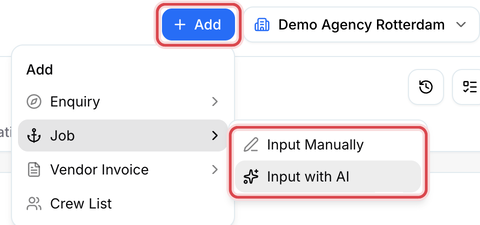
Note: Input with AI and Crew List show only when your role may use AI. If you do not see them, ask your administrator.
Fill it with AI
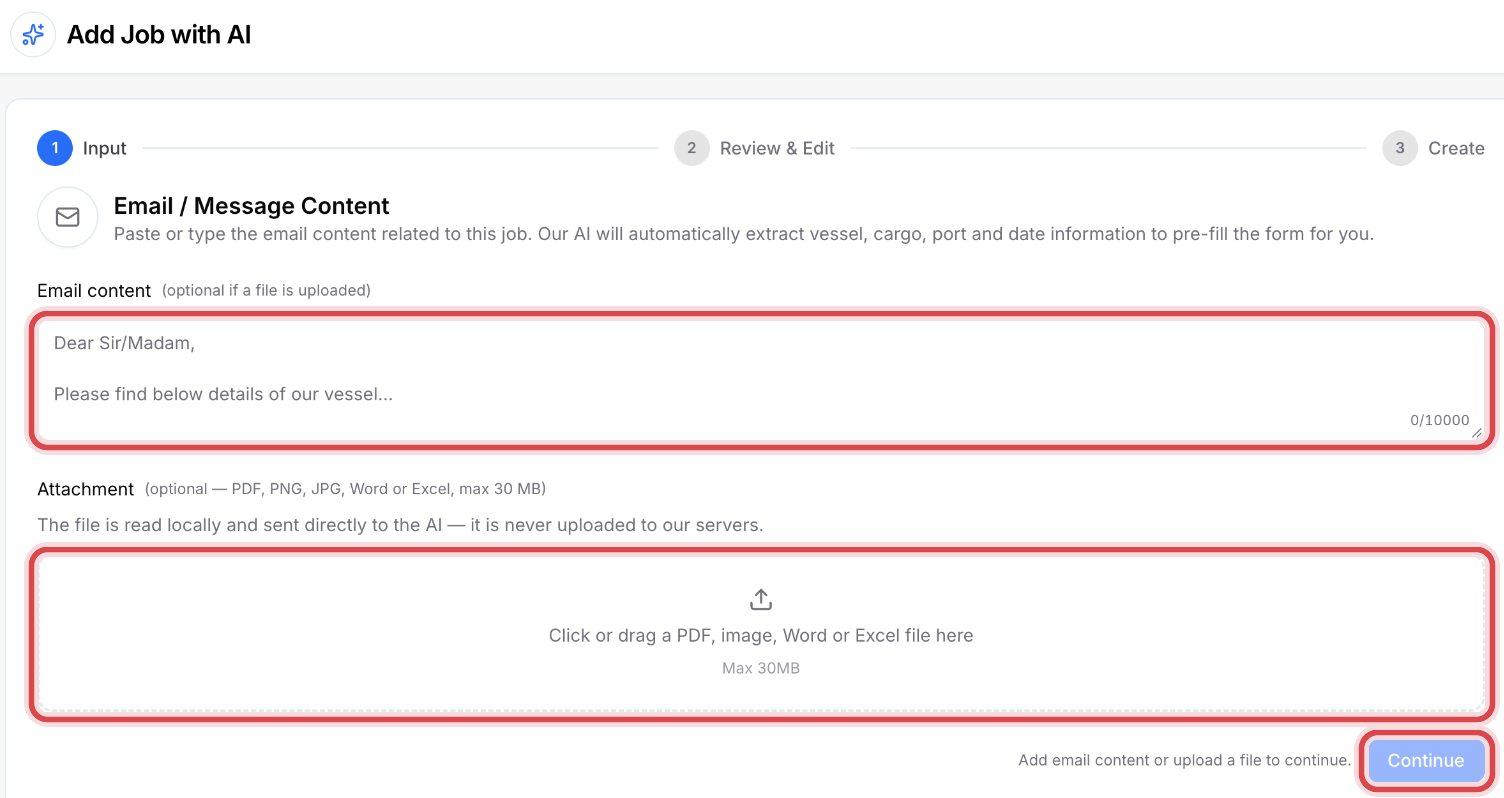
Paste the email under Email content, or drop a PDF, image, Word or Excel file under Attachment, and click Continue. Check what AI found in Review & Edit, correct anything, and create the record.
Tip: On the Customers, Vendors, Services and Tariffs and Events lists, the arrow next to the add button has Import from AI, which adds many records at once from a file.
Add a missing entry on the spot
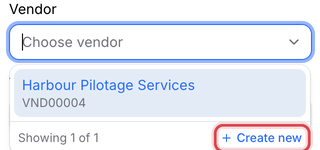
When a customer, port or other entry you need is not in a list on a form, click Create new at the bottom of the list. You add it without leaving the form, and it is filled in for you.
Was this article helpful?
Thanks for your feedback.