

Create a Rolling Proforma Invoice
Create a Proforma Invoice for a customer that is not tied to one job.
A Rolling Proforma Invoice asks a customer for an advance on work across several jobs. It is raised on the customer, not on a job, and you type its lines yourself.
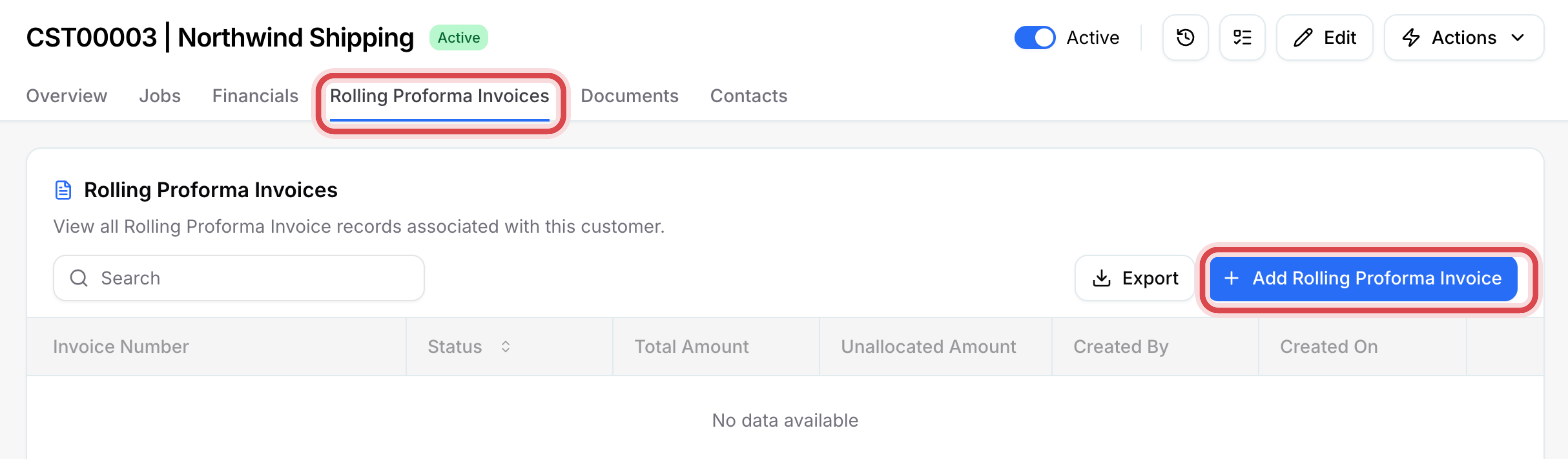
Open the customer’s Rolling Proforma Invoices
Go to Master Data, open Customers and click the customer’s name. Open the Rolling Proforma Invoices tab and click Add Rolling Proforma Invoice.
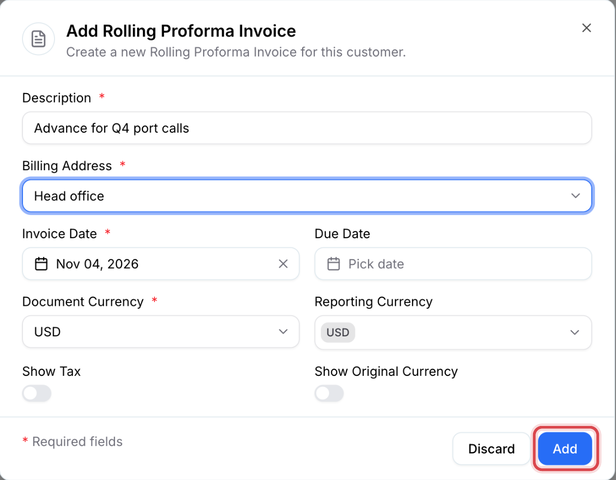
Fill in the details
Fill in Description (what the advance is for), Billing Address, Invoice Date and Document Currency. Turn on Show Tax if the invoice should show taxes. Click Add, then open the new invoice from the list.
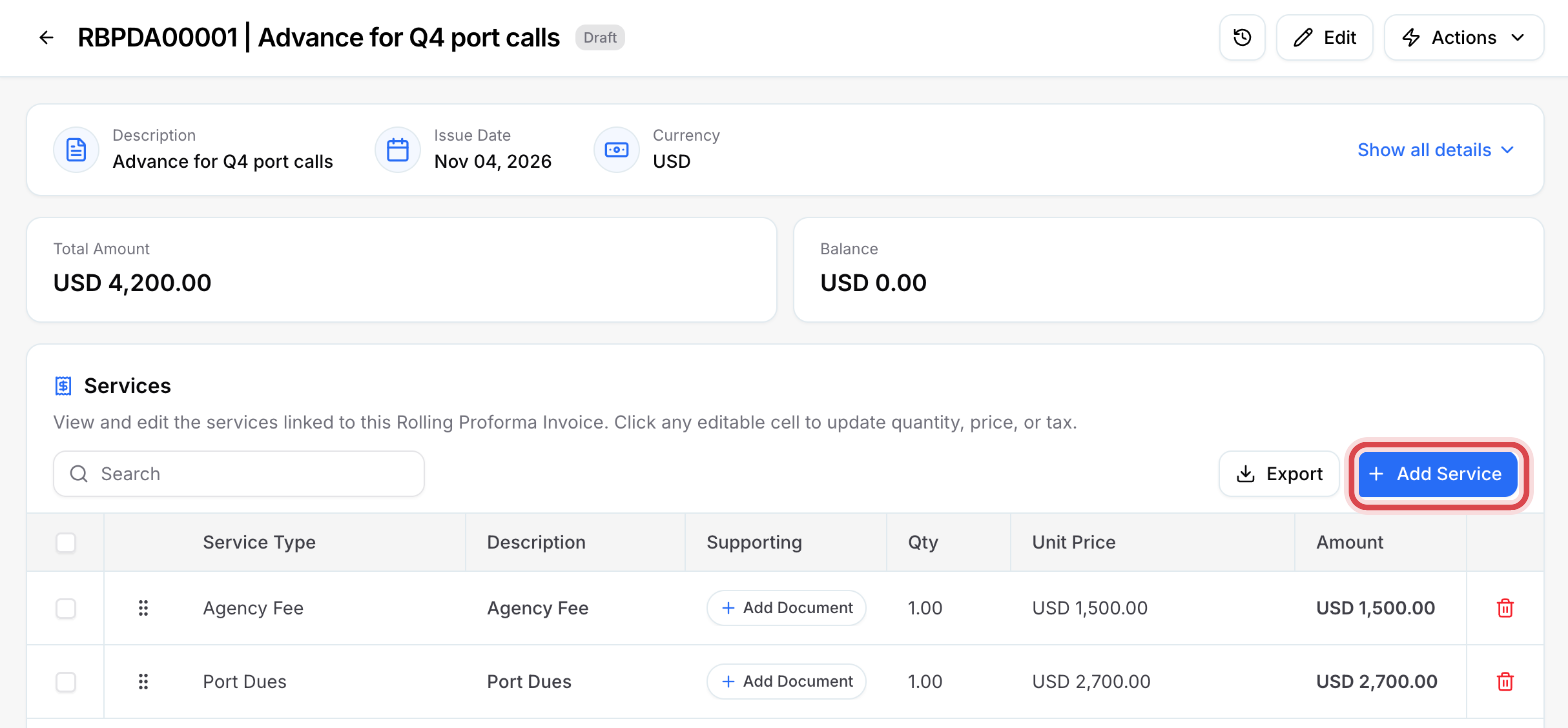
Add the lines
Under Services, click Add Service. Choose the Service Type, enter the Description, Qty, Unit Price and its currency, and a Tax Rate if the invoice shows tax. Save the row and repeat.
Note: If your branch does not allow different currencies in documents, every line must be in the invoice’s currency. See Set credit limits and currency controls.
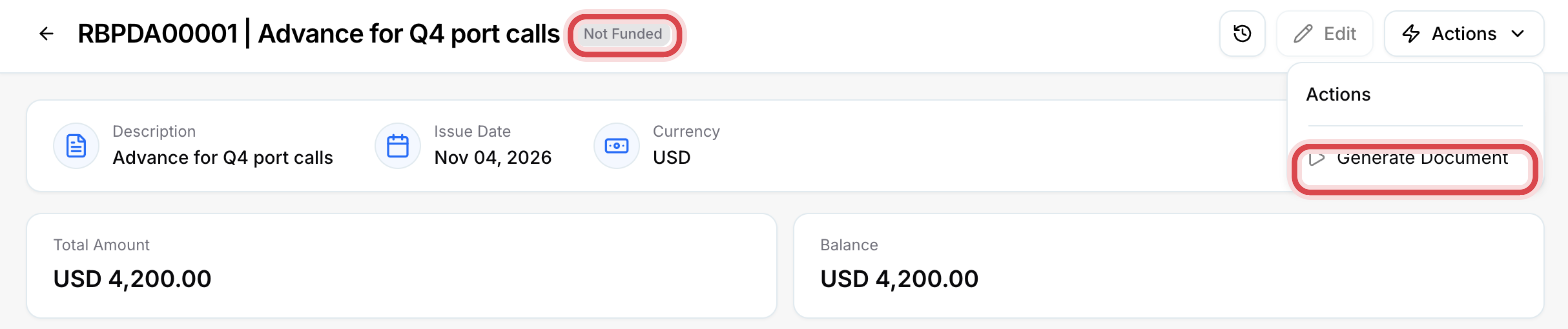
Approve and send it
Click Approve, or Submit for Approval if your branch has an approval rule. The invoice becomes Not Funded and can no longer be edited. Click Generate Document to create the PDF for the customer.
Record the advance
When the customer pays, record a customer payment and allocate it to the Rolling Proforma Invoice. See Record a customer payment.
Tip: When you close a job, money left unused on its Proforma Invoices moves to a new Rolling Proforma Invoice on the customer. The Close Job confirmation tells you how many will be created. See Close a job.
For the statuses and what you can do in each, see Rolling Proforma Invoices.
Was this article helpful?
Thanks for your feedback.