

Correct a paid Final Invoice
Cancel the customer payment first, then issue the Credit Note.
A Credit Note reduces the balance still due, so it cannot be raised on a Final Invoice that is already Paid. Free the invoice first by cancelling the payment, then correct it.
Cancel the customer payment
Open the customer payment allocated to the Final Invoice, click Actions and choose Cancel Payment. The Final Invoice goes back to Awaiting Payment. See Cancel a customer payment.

Note: Cancelling takes the money off every invoice the payment paid, and it cannot be undone.
Issue the Credit Note
On the job’s Financials tab, click Create, choose Credit Note and pick the Final Invoice as Related Final Invoice. Keep only the lines you credit and approve it. See Correct a Final Invoice with a Credit Note.
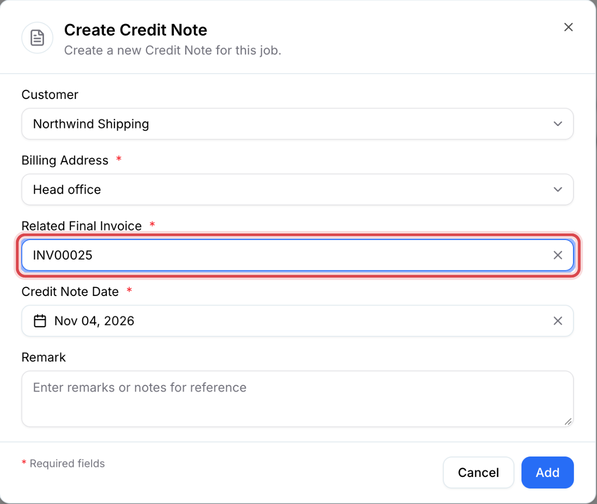
Note: An approved Credit Note cannot be undone, and its total can be at most the invoice’s unpaid balance.
Record the payment again
Record the customer’s payment for the Final Invoice’s new balance and allocate it. See Record a customer payment.
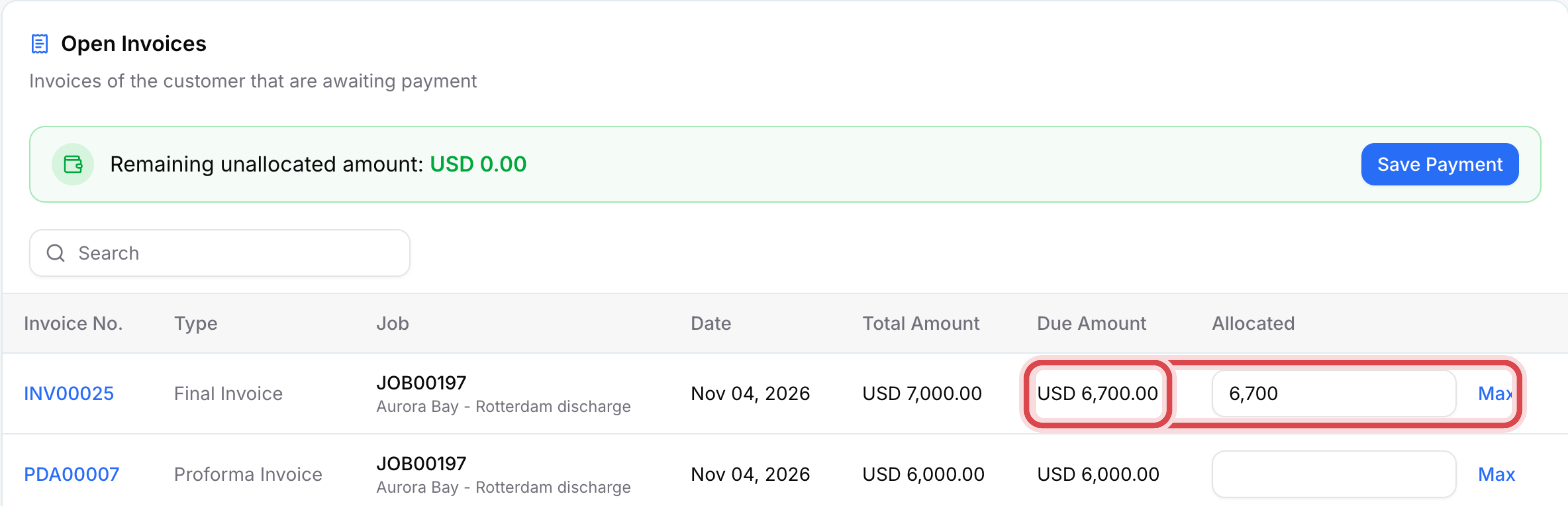
For the rules on Credit Notes and payments, see Credit Notes and Customer Payments.
Was this article helpful?
Thanks for your feedback.