

Correct a Final Invoice with a Credit Note
Reduce or correct an approved Final Invoice.
An approved Final Invoice cannot be edited or cancelled. If it charged the customer too much, issue a Credit Note against it: approving it lowers what the customer still owes on that invoice.
Check the Final Invoice is Awaiting Payment
A Credit Note can only be raised against a Final Invoice that is Awaiting Payment, on a job that is open or reopened. A draft does not need one: edit it instead. If the invoice is already Paid, see Correct a paid Final Invoice.
Create the Credit Note
Open the job’s Financials tab, click Create and choose Credit Note. Fill in Customer, Billing Address, Related Final Invoice and Credit Note Date, and a Remark if you want the reason on record. Click Add.
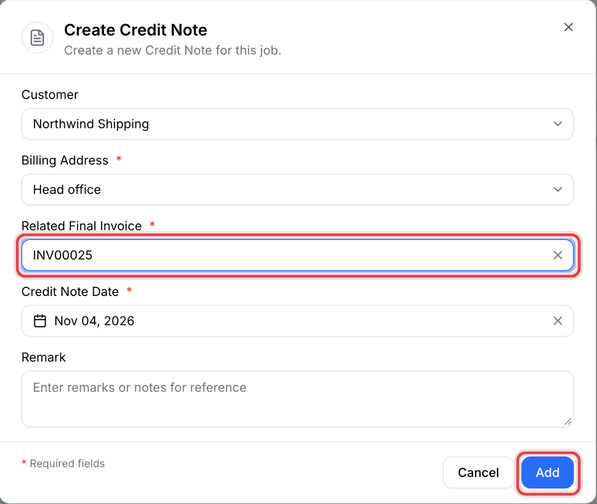
The Credit Note takes its currency and tax display from the Final Invoice.
Keep only what you credit
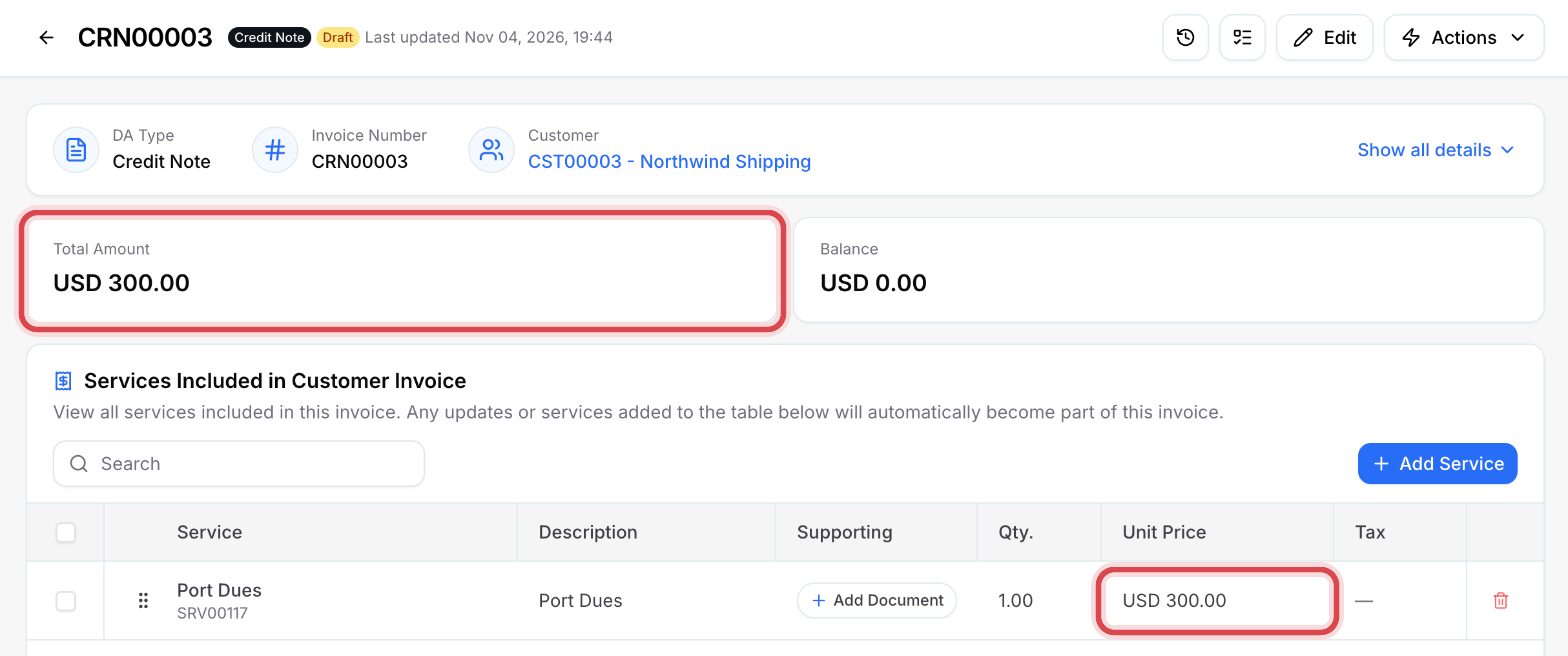
The Credit Note starts as a copy of the Final Invoice’s lines, so as it stands it credits the whole invoice. Change it:
- Credit part of a line: click its unit price and enter the amount to credit.
- Leave a line out: tick it and click Delete Selected.
- Bring a line back: click Add Service.
The Total Amount is what will come off the Final Invoice.
Approve it
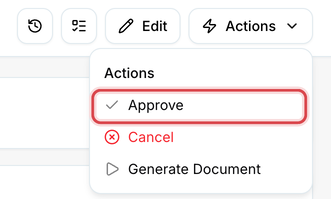
Open Actions, click Approve and confirm. With approval rules, you see Submit for Approval instead. PCM refuses the approval if the total is more than the invoice’s balance due, or credits a service for more than was billed for it.
Note: An approved Credit Note cannot be undone. Check its lines and total before you approve it.
Check the Final Invoice
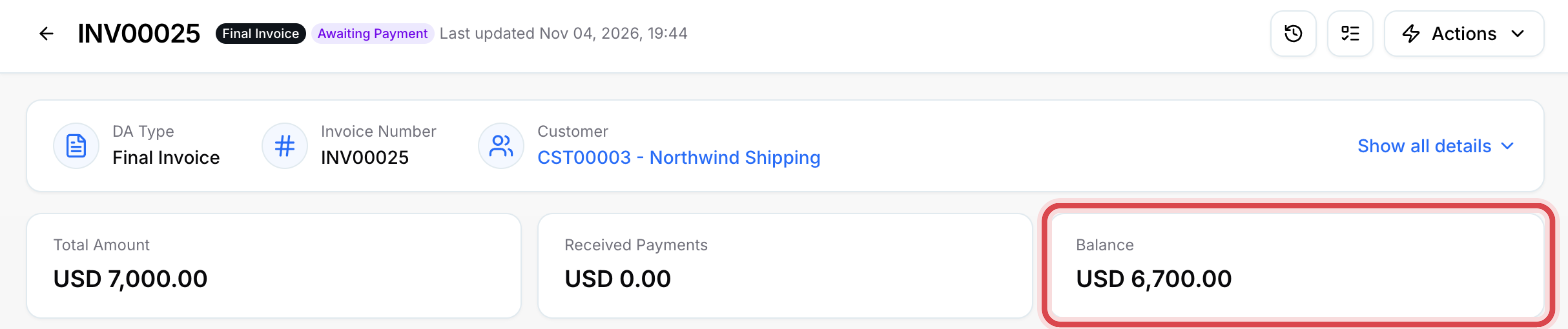
Open the Final Invoice. Its Balance is lower by the Credit Note’s total; if nothing is left, it is Paid. The Credit Note does not refund money; record the customer’s payment for the rest as usual.
To send the Credit Note, see Generate an invoice document. For its statuses and rules, see Credit Notes.
Was this article helpful?
Thanks for your feedback.