
Track vessels in a zone you define with Custom Areas
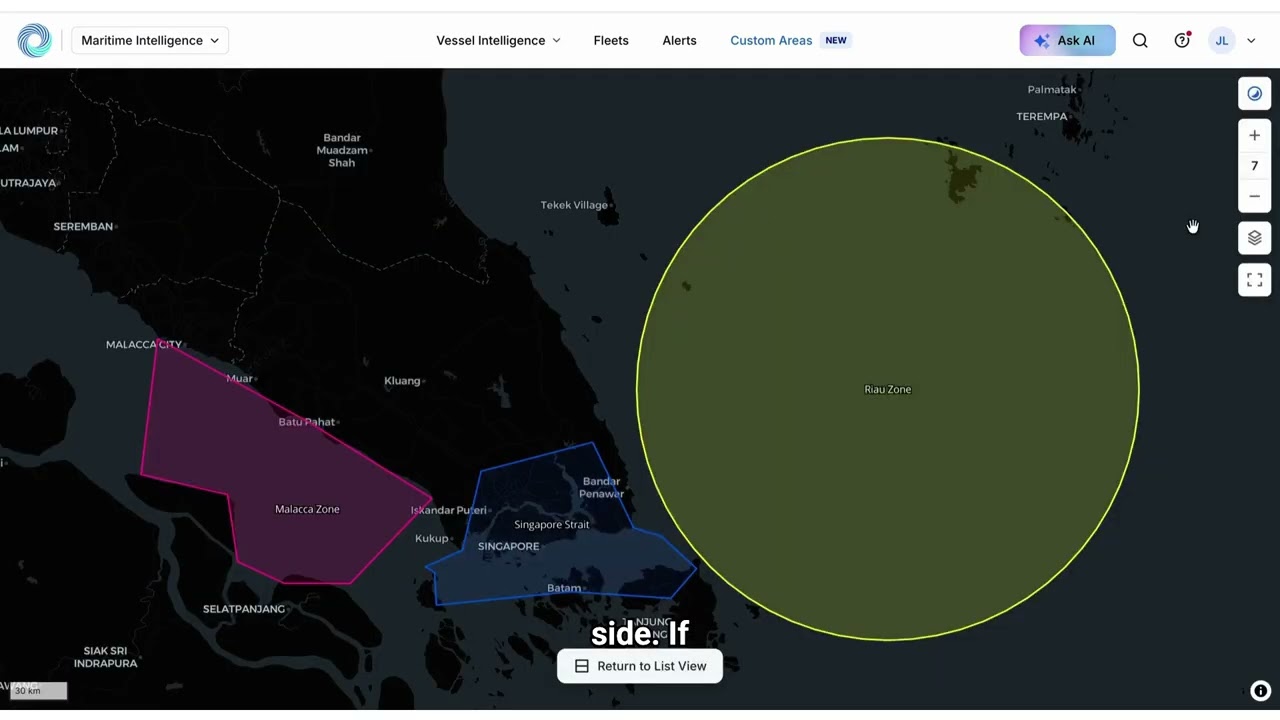
A Custom Area is a zone you draw on the map, or copy from a ready-made template, so you can see every vessel inside it and be alerted when vessels enter, leave or change status there.
 7 min walkthrough of Custom Areas
Custom Areas is the geofencing tool in Maritime Intelligence. Instead of searching around one port, you define the exact waters you care about, such as an anchorage, a strait, a bunkering zone or a war risk area, and work with the vessels inside it.
Who uses Custom Areas
- Agents and suppliers watch an anchorage or bunkering zone that a port radius does not fit well.
- Operations and chartering teams follow traffic through straits and chokepoints.
- Compliance and insurance teams monitor war risk and high-risk areas.
Two ways to start
| Start from | Best for | Where |
|---|---|---|
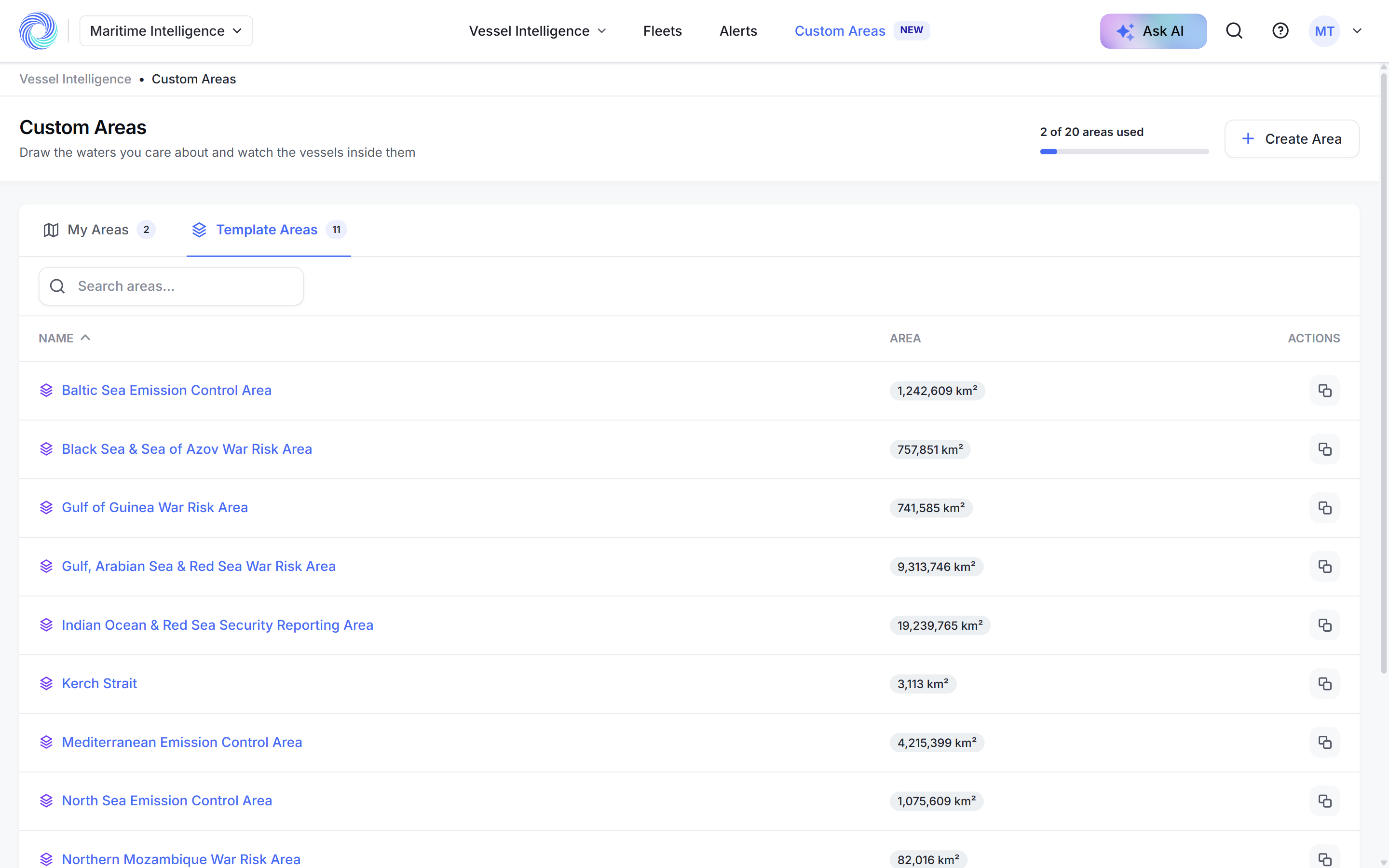
| Template Areas | Well-known zones: emission control areas, war risk areas, straits | Template Areas tab, copy icon or Copy to My Areas |
| Create Area | Your own waters | Create Area, then draw on the map |
The templates include the Baltic, North Sea and Mediterranean emission control areas, the Black Sea, Gulf of Guinea, Red Sea and Northern Mozambique war risk areas, and the Kerch, Singapore and Hormuz straits. A copy is yours to reshape; the template does not change.
Note: Template areas are a convenience. They are not official areas and do not represent legal, insurance or statutory boundaries.
Drawing tools
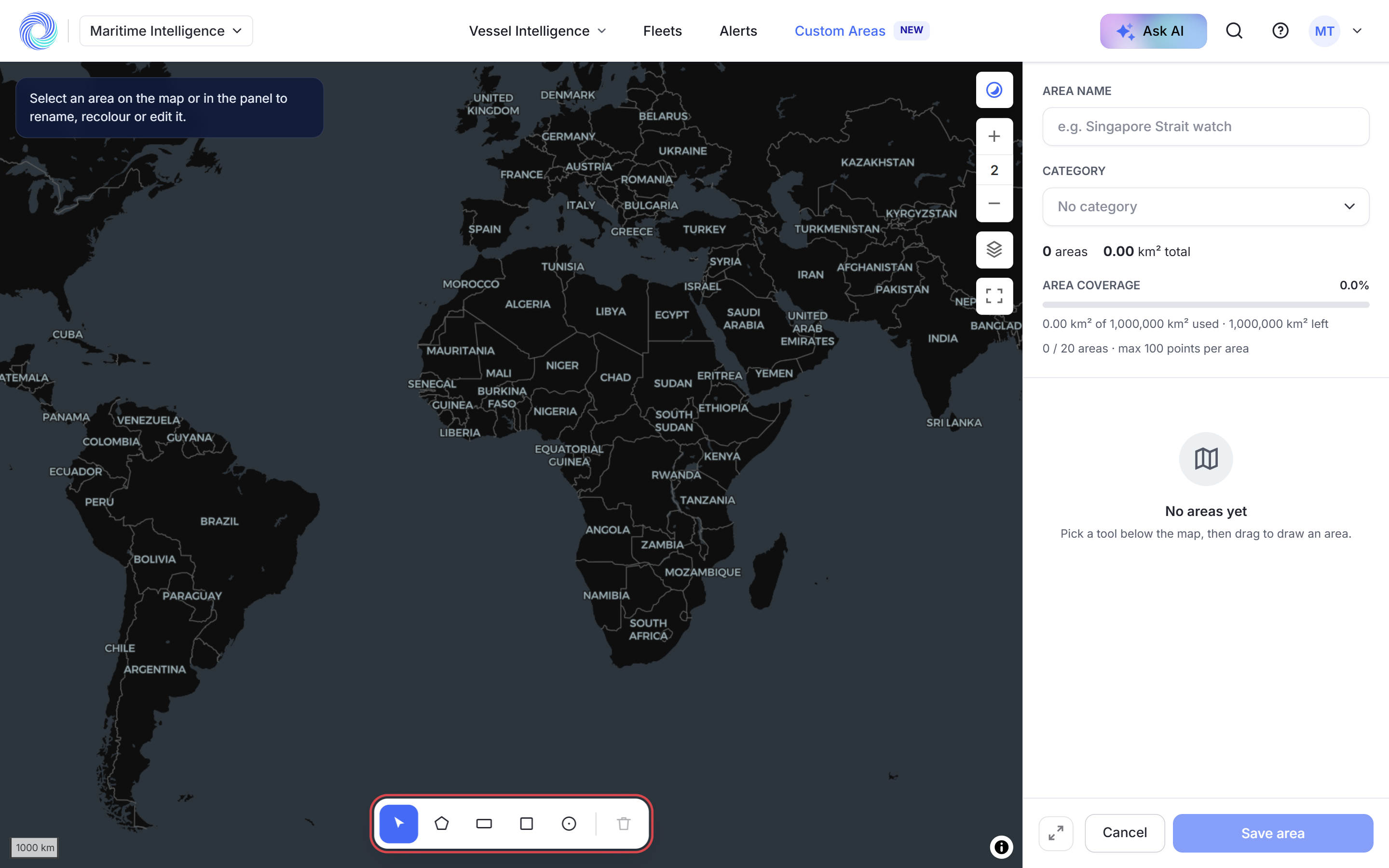
One custom area can hold several shapes, so a strait and its approaches can share one name and one alert.
| Tool | Use it to |
|---|---|
| Select | Pick a shape to rename, recolour or reshape it |
| Polygon | Draw point by point along a coastline or traffic lane |
| Rectangle and Square | Drag a box |
| Radius | Drag a circle out from a centre point, useful for anchorages |
Limits
| Limit | Value |
|---|---|
| Areas per account | 20 |
| Points per shape | 100 |
| Total coverage | 1,000,000 km² across all your areas |
The header of the Custom Areas page shows how many areas you have used, and the editing panel shows how much coverage is left.
What you can do with an area
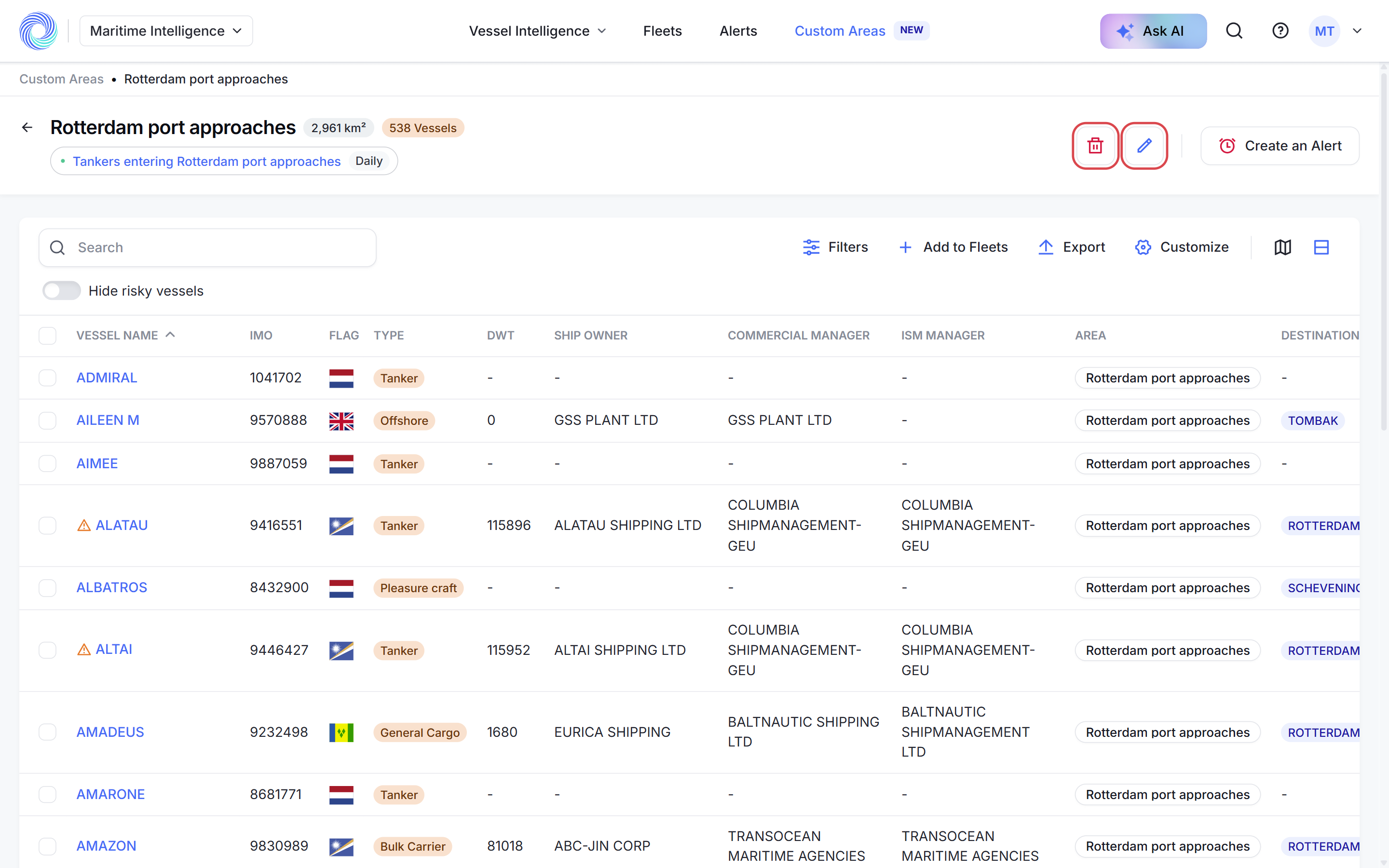
Opening an area lists every vessel inside it now, with its size and vessel count in the header. From there you can Filter the list, Hide risky vessels, switch to the map, Customize columns, Export, Add to Fleets and Create an Alert.
Alerts for an area
| Trigger | Fires when |
|---|---|
| Area Entry / Exit | A vessel crosses the boundary. Choose entry, exit or both |
| AIS Navigational Status Change | A vessel changes to a status you choose, for example Anchored or Moored |
Click Create an Alert on the area page and the area is filled in for you. See Stay on top of vessel events with Alerts.
How-to guides
Frequently asked questions
Can I use a custom area as a filter in searches? Yes. The Custom Areas filter in Scheduled Arrivals, Nearby Vessels and Vessel Search limits results to vessels inside one of your areas.
Does copying a template count towards my limits? Yes. A copy is one of your areas, and its size counts towards your coverage.
Can one alert watch several areas? Yes. In an Area Entry / Exit rule, click Add areas.
Why is Area Entry / Exit unavailable when I create an alert? You need at least one area in My Areas first.
Was this article helpful?
Thanks for your feedback.