

Change which invoices a customer payment pays
Move a saved payment to other invoices.
If a payment went to the wrong invoices, you can allocate it again. Its customer, date, amount and currency cannot be changed; for those, cancel the payment and record it again.
Choose Reset Allocations
Open the payment from Customer Payments, click Actions and choose Reset Allocations.

Allocate it again
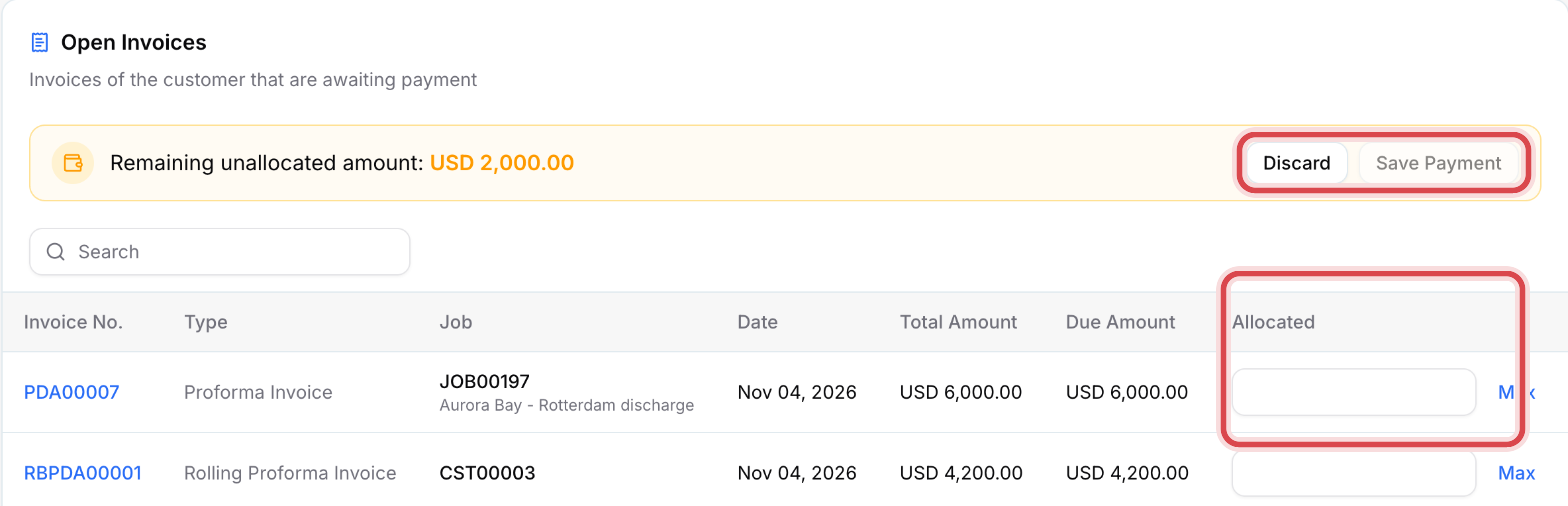
Open Invoices appears again, with the invoices this payment paid put back as open. Enter the new amounts in Allocated and click Save Payment, or Discard to keep the old allocation.
Note: If the payment funded a Proforma Invoice that is linked to a Final Invoice, you cannot reset it: the money is already used. Remove the link while the Final Invoice is still a draft, or cancel the draft, and try again.
Was this article helpful?
Thanks for your feedback.