

Record a shipment
Record parcels and cargo shipped to or from the vessel, and track them.
Record each parcel or spare part on its way to or from the vessel, and update its status until it is delivered.
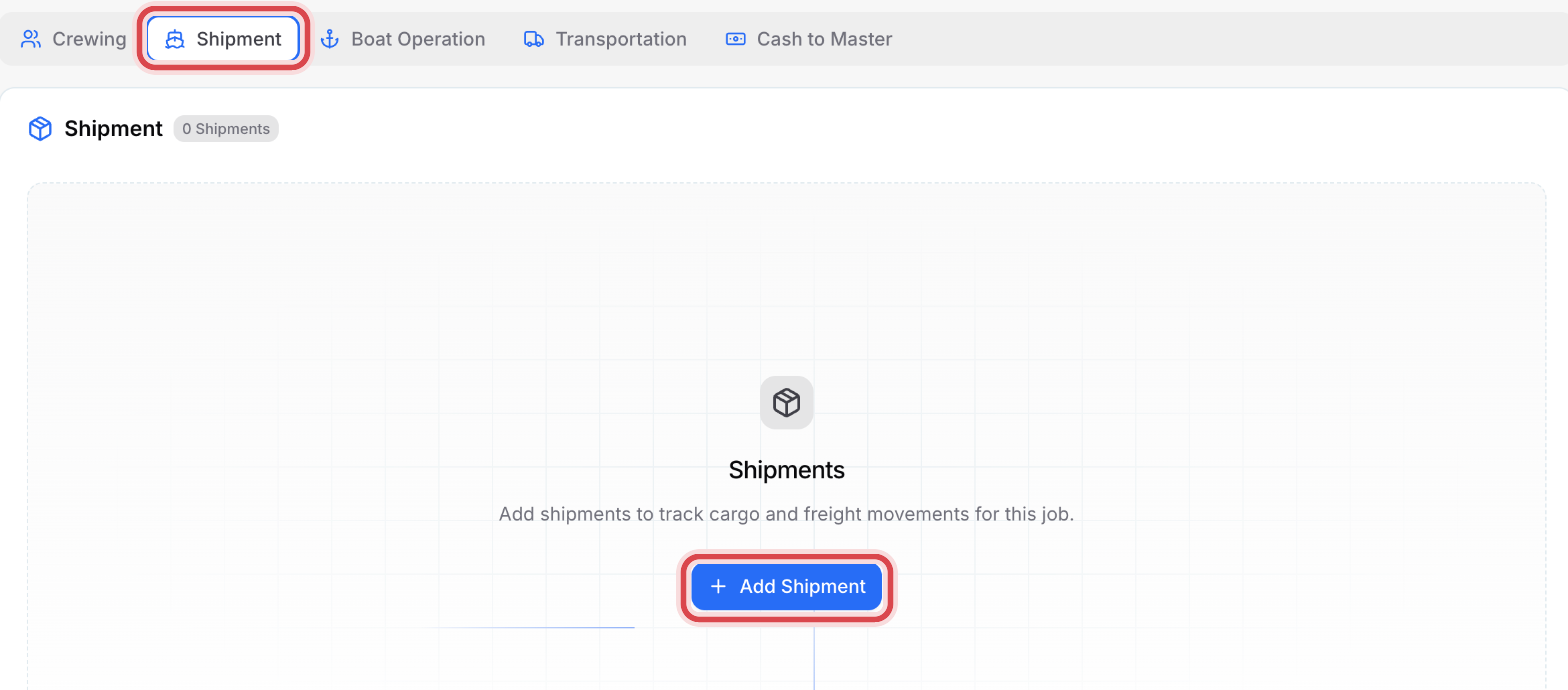
Open Shipment on the Operations tab
Open the job, click the Operations tab and open Shipment. Click Add Shipment.
Fill in the shipment
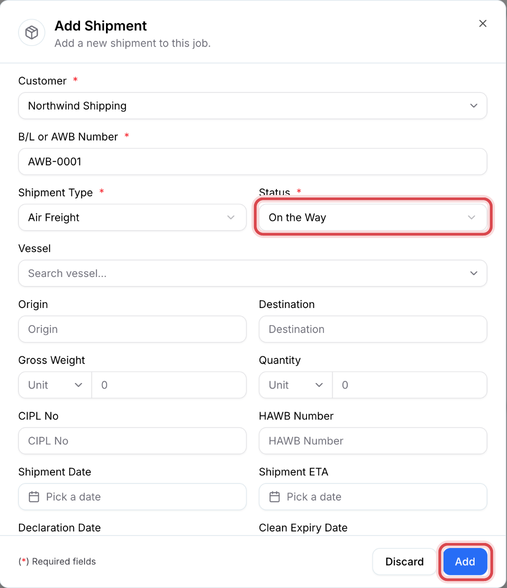
Four fields are required:
- Customer: which of the job’s customers it is for.
- B/L or AWB Number: the shipment’s reference.
- Shipment Type, such as Sea Freight, Air Freight, Courier or Local Delivery.
- Status: where the shipment is now.
You can also choose the Vessel it is for, and add the Origin and Destination. Click Add.
Update the status as it moves
Edit the shipment as it moves: On the Way, Arrived, Cleared, In Storage, Delivered.
Tip: Husbandry → Shipment in the left menu lists the shipments of every job, so you can find every one still On the Way.
Generate the proof of delivery
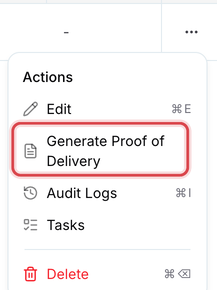
Once delivered, open the shipment’s actions and click Generate Proof of Delivery, if your company has access to it. You can also attach the delivery note to the shipment.
Was this article helpful?
Thanks for your feedback.