

Link a service to crew, flights or cargo
Tag a service with the crew, flight, vessel or cargo it is for.
Related Items tag a service with what it is for, such as the crew member a flight ticket was bought for, or the cargo a survey was done on. You then see at a glance which services belong to which crew, vessel or cargo.
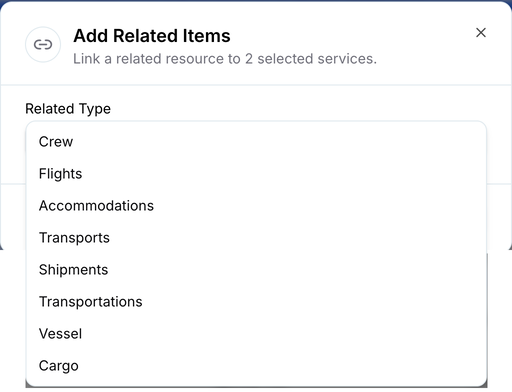
You can link a service to the job’s Crew, Flights, Accommodations, Transports, Shipments, Transportations, Vessel or Cargo.
Note: Only records of the same job can be linked, and links cannot be added once the job is closed.
Link several services at once
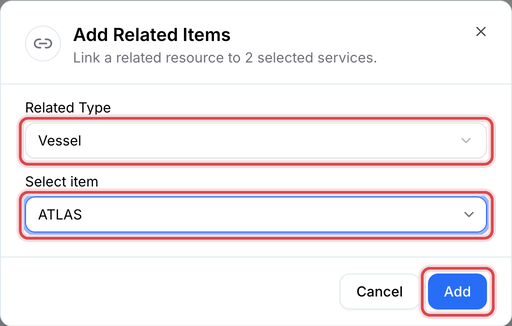
On the job’s Services tab, tick the services, open Actions in the bar above the list and choose Add Related Items. Choose the Related Type, the item, and click Add.
Link one service
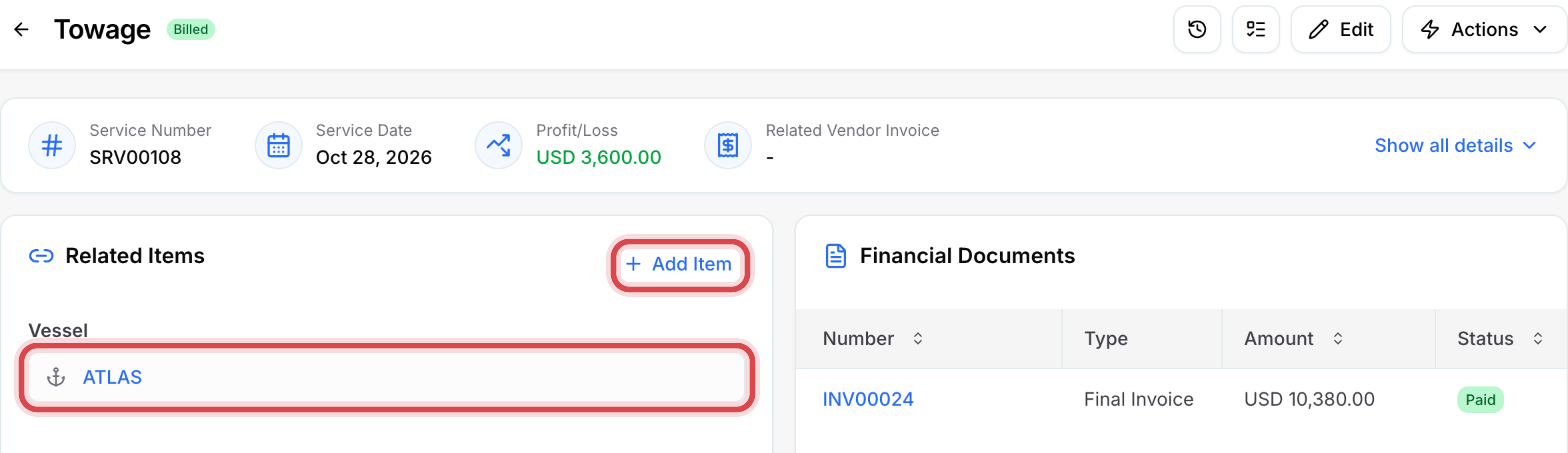
Open the service and click Add Item in the Related Items card. The same card lists the service’s links; to remove one, point at it and click ×.
See and filter linked services
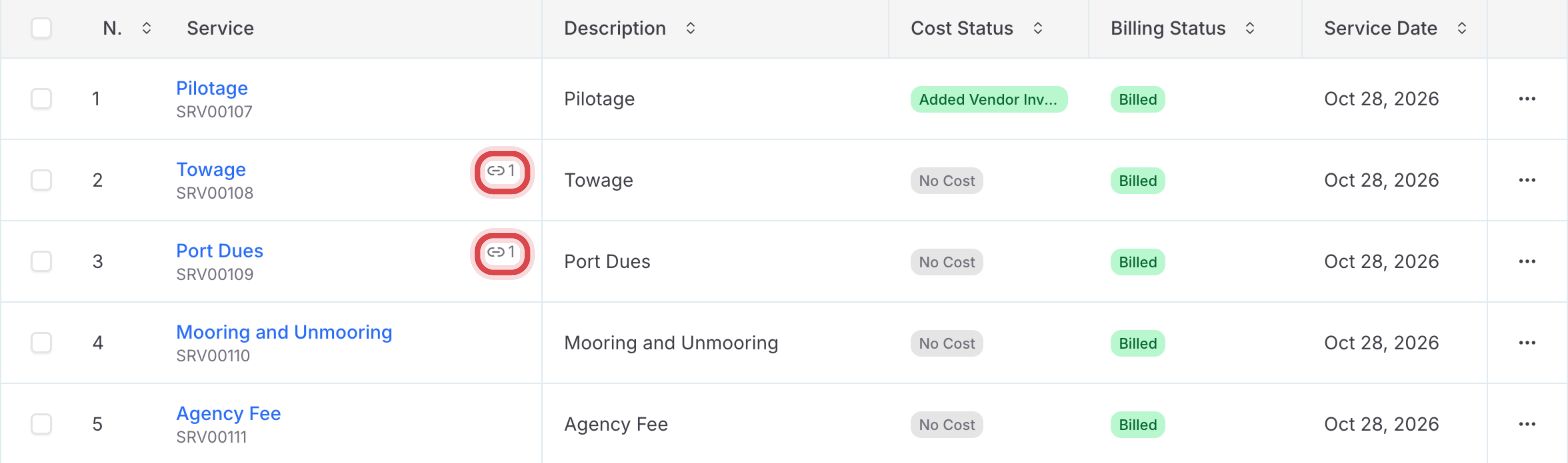
On the Services tab, a link icon with a number next to a service shows how many items it is linked to. Click it to see or change them. To list only the services of one item, open Filters and use Related Item.
Was this article helpful?
Thanks for your feedback.