

Generate an OKTB letter for crew flights
Create an OK to Board letter for crew travelling to the vessel.
An OK to Board (OKTB) letter asks the passport and immigration office to let the airline board crew members flying to join a vessel you are the local agent for. PCM writes it from the flight on the job; you only choose the vessel and the date.
Check the flight is on the job
Open the job, go to the Operations tab and open Crewing. The travelling crew must be under Crew Members, and their flight under Flights with those crew members on it. If it is missing, see Book crew flights.
Tip: The letter prints each crew member’s rank, date of birth, and passport and seaman’s book numbers and dates, so complete those on the crew member first.
Choose Generate OKTB
In the Flights list, open the row’s actions menu and click Generate OKTB.
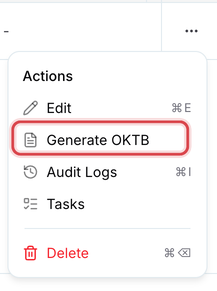
Note: If you do not see Generate OKTB, your role or plan does not include OKTB letters. See Roles, permissions and plans.
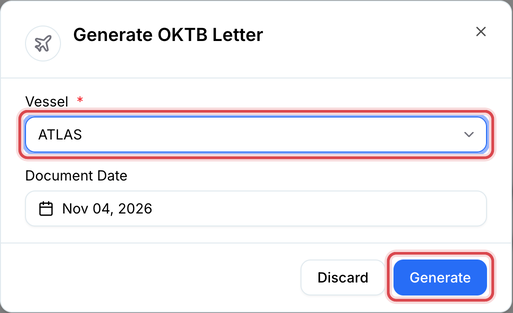
Choose the vessel and the date
In Generate OKTB Letter, choose the Vessel the crew are joining; it is required. Document Date starts as today. If your branch has more than one OKTB layout, you also see Template. Click Generate.
Download the letter
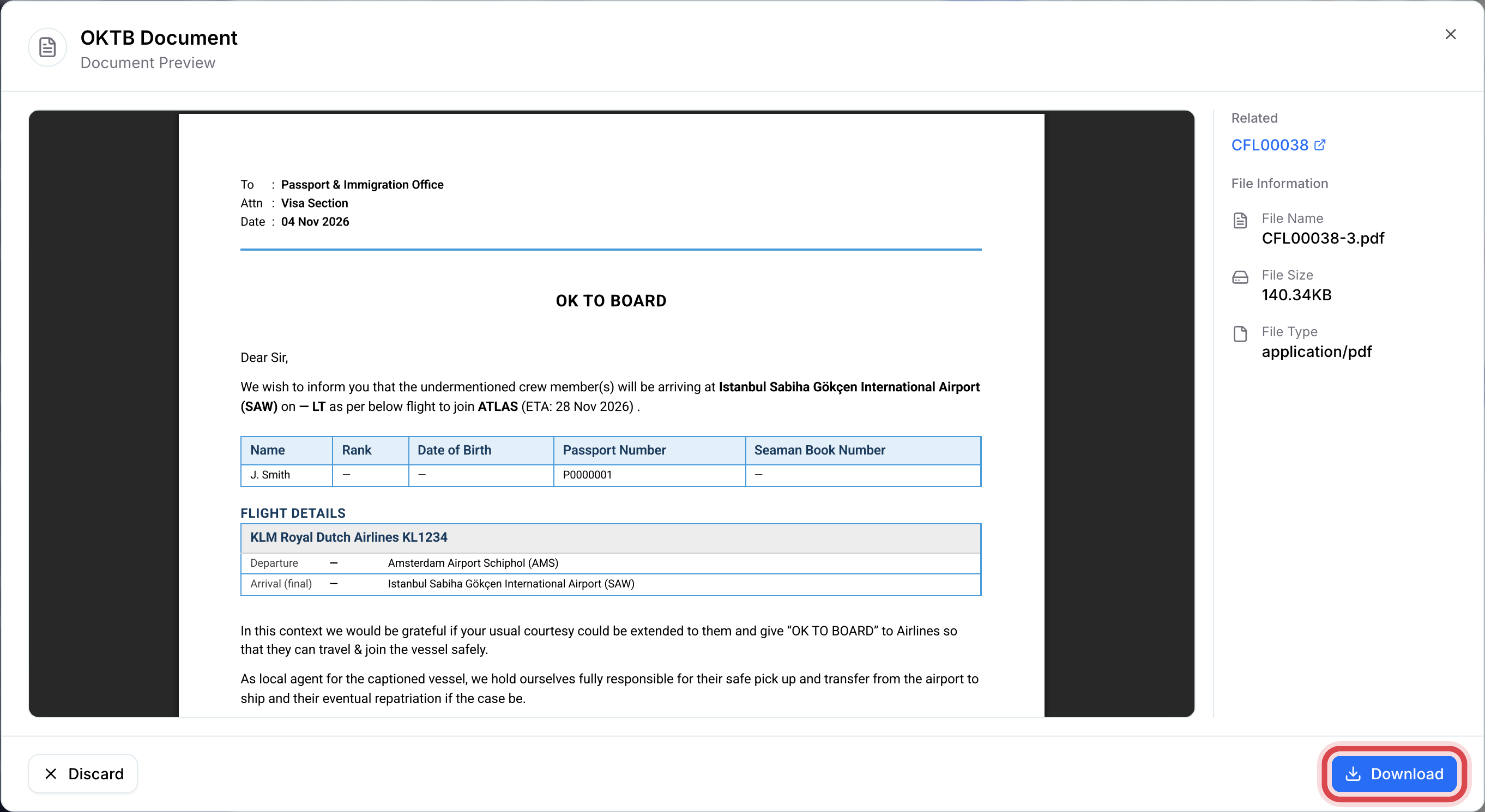
PCM builds the letter in the background and tells you when it is ready. In the preview, click Download, or Send, if you see it, to email it.
The letter lists the crew members, the flight legs and the vessel with its ETA, and states that you, as local agent, transfer them from the airport to the vessel.
Was this article helpful?
Thanks for your feedback.