

Export lists and documents
Export lists to a file.
Export a list to an Excel file to share it with someone who does not use PCM, or to work on it in a spreadsheet. Most lists can be exported, such as Jobs, Services, Customer Invoices, Vendor Payments and the Master Data lists.
Note: You need permission to export. If you do not see the Export button, ask your administrator.
Set the list up the way you want the file
Open the list, type in the search box, apply Filters and sort by a column. The file holds only the matching rows of the branch selected at the top of the screen.
On Jobs, the vessel columns you show, in their order, also go into the file.
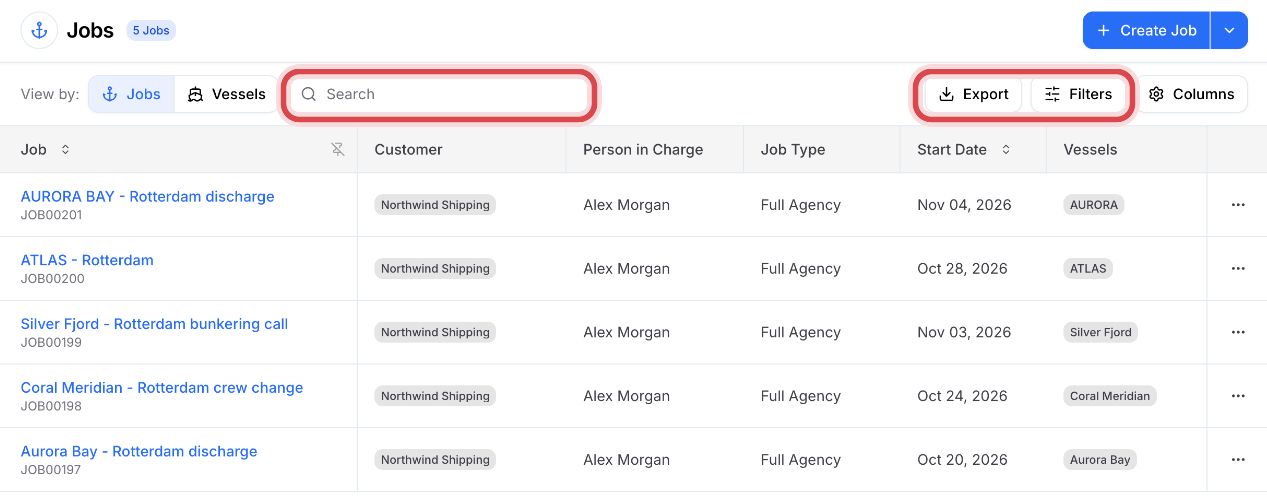
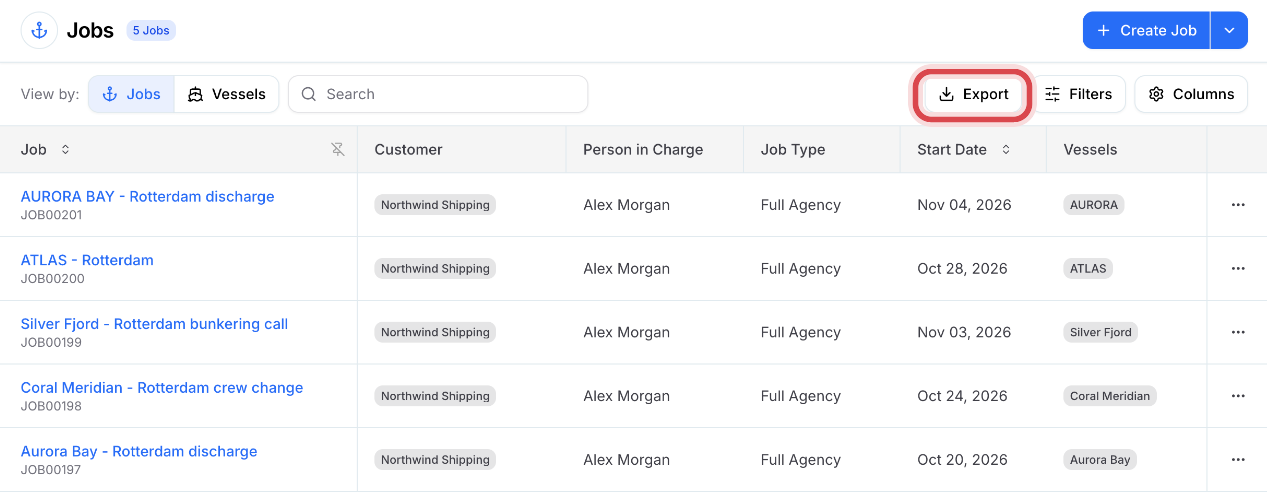
Click Export
Click Export. PCM shows Export has been started. You will be notified when it is ready. and builds it in the background, so you can keep working.
Download the file
When it is ready, PCM shows a message that your export has been generated successfully. Click Download in the message. You also get a notification under the bell.
If something goes wrong, PCM shows Export failed. Please try again.

Note: A text value that starts with
=,+,-or@gets a leading'in the file, so the spreadsheet shows it as text instead of running it as a formula.Invoices and other documents are generated from their record, not exported from a list. See Generate an invoice document and Generate a statement of facts.
Was this article helpful?
Thanks for your feedback.