

Customize a list
Choose, order, pin and size the columns of a list.
Every list, such as Jobs, a job’s Services or Customer Invoices, can show the columns you need in the order you want.
Note: PCM keeps your list layout in this browser. It comes back each time you open the list here, but not on another computer or browser.
Show, hide and reorder columns
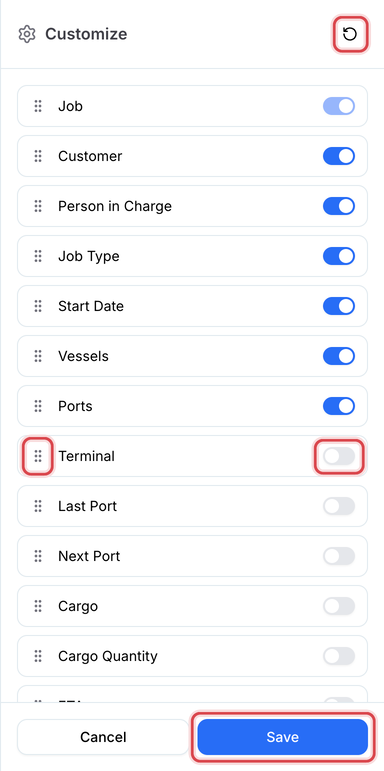
Click Columns above the list. In Customize, turn a column on or off, drag a column by its handle to move it, and click Save. The reset button at the top puts the list back to its default columns.
Sort and pin a column
Click a column’s name. Choose Asc or Desc to sort the list by it; choose it again to clear the sort. Pin to left or Pin to right keeps the column in view while you scroll sideways.
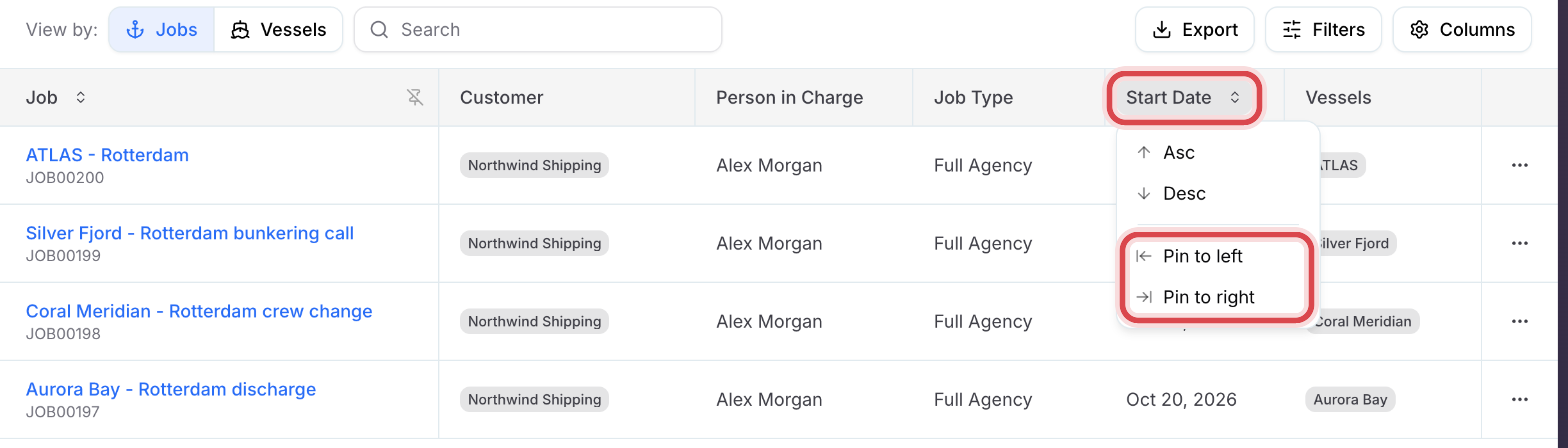
To unpin, click the pin icon in the pinned column’s header.
Change a column’s width
Drag the right edge of a column’s header to make the column wider or narrower.
Show more rows
Use Rows per page under the list to show more records on one page.
Was this article helpful?
Thanks for your feedback.