

Allocate a customer payment in another currency
Pay an invoice with money received in a different currency.
When the customer pays in a different currency from the invoice, you allocate in the payment’s currency and PCM converts it for you.
Check the exchange rate
PCM converts at your exchange rates for the payment’s Document Date. If no rate is set for that currency on that date, add it first. See Use exchange rates.
Choose the payment’s currency
In Add Customer Payment, choose the currency the customer paid in next to Net Amount Received, fill in the rest and click Next: Allocate Funds.
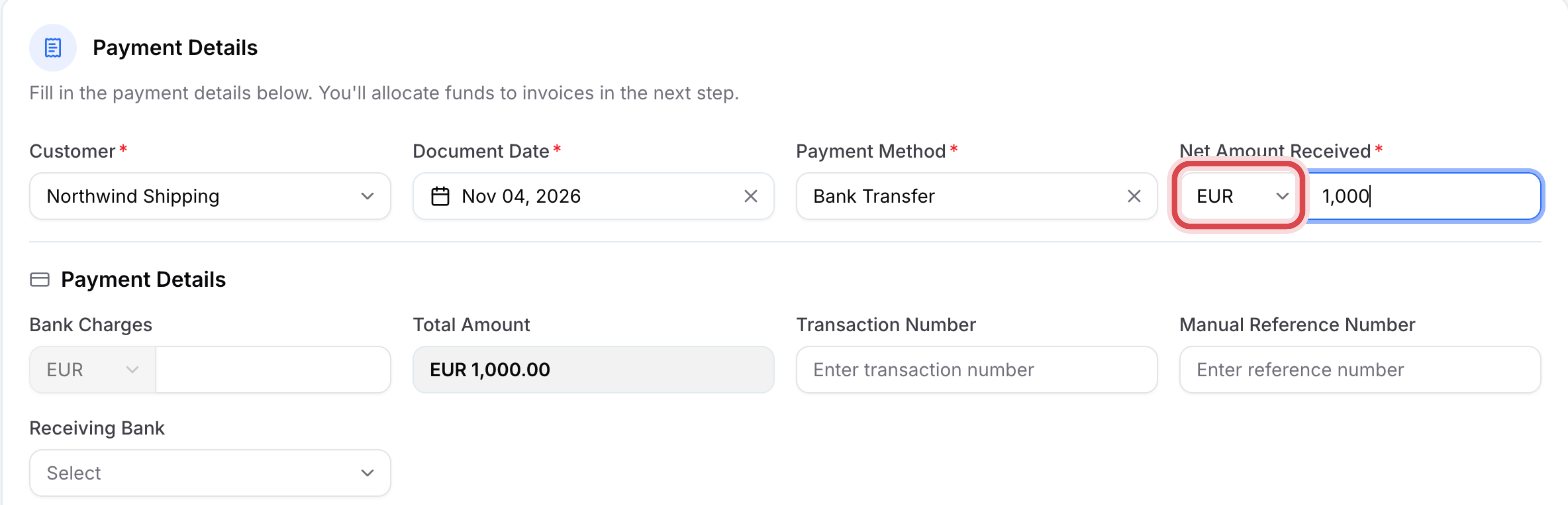
Allocate in the payment’s currency
Open Invoices shows the amounts converted to the payment’s currency. Enter the amounts in Allocated and click Save Payment. PCM takes the converted amount off each invoice in its own currency; allocating the full due amount clears the invoice exactly.
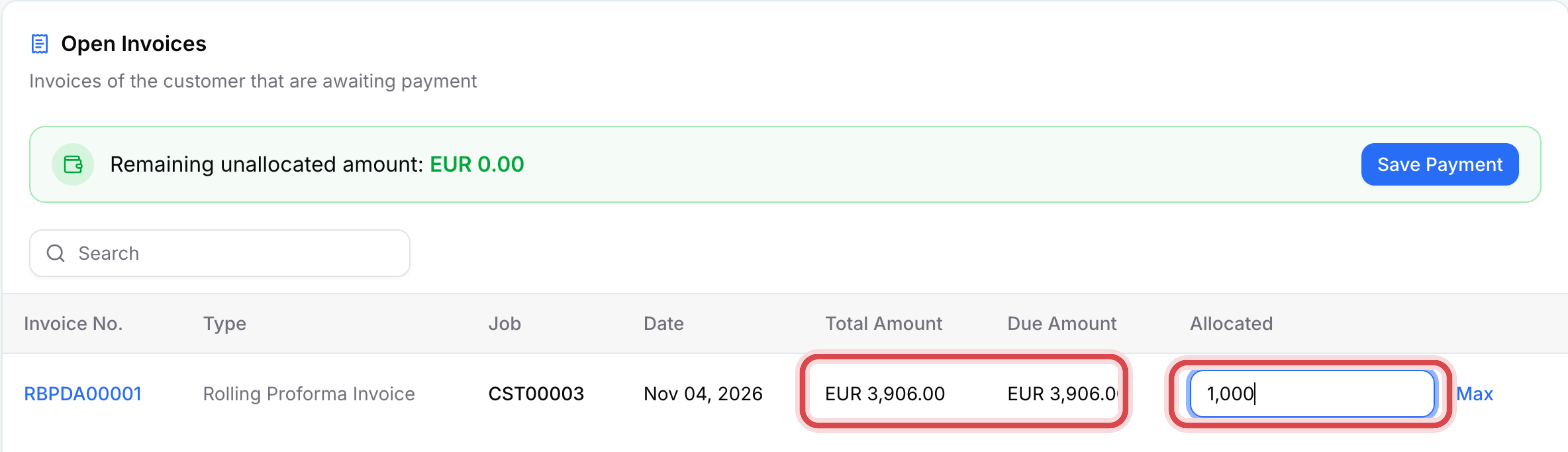
Note: If your branch does not allow different currencies in documents (Currency Control in the branch’s general settings), only invoices in the payment’s currency are listed. See Set credit limits and currency controls.
Was this article helpful?
Thanks for your feedback.