

Add crew members
Add the crew joining or leaving the vessel to a job.
Crew members are the starting point of a crew change: flights, hotels and transfers are booked for the crew you add to the job.
Open Crewing on the Operations tab
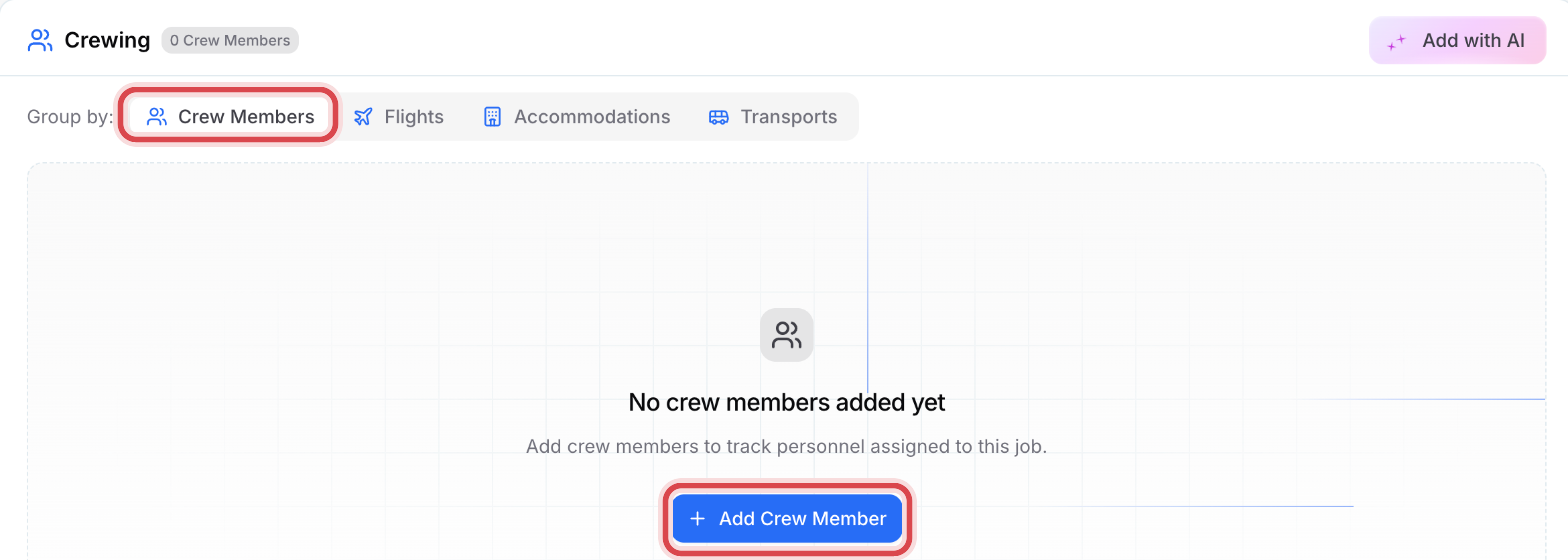
Open the job, click the Operations tab, open Crewing and then Crew Members.
Note: A crew member belongs to one of the job’s customers. Add the customer to the job first.
Add the crew member
Click Add Crew Member and fill in the required fields:
- Crew Name.
- Customer: which of the job’s customers the crew member is for.
- Passport Number: each passport number can be added once per job.
Set the Crew Type to Onsigner or Offsigner if you know it. Click Add.
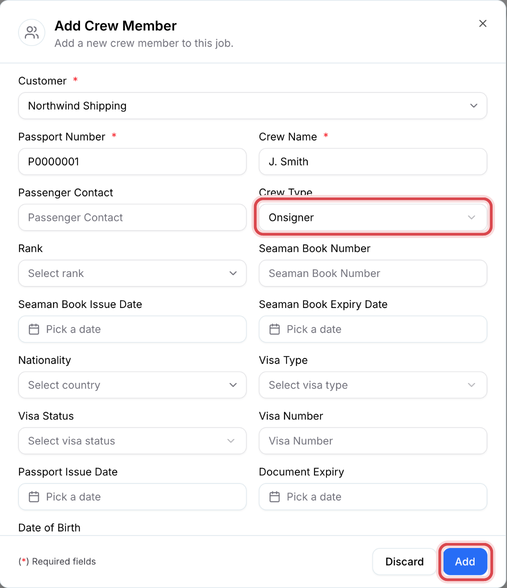
Tip: Also fill in the Rank, Date of Birth, and the passport and seaman book numbers and dates. Letters such as the OKTB letter print them.
Add visa details if needed
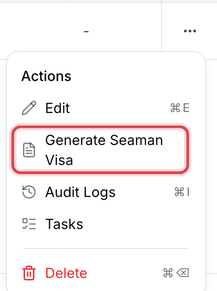
Visa Type, Visa Status and Visa Number are on the same form. To generate a seaman visa document, open the crew member’s actions and click Generate Seaman Visa, if your company has access to it.
Find them next time
PCM also saves the crew member under Master Data → Crew Members, matched by passport number, so their details are ready the next time they travel.
Was this article helpful?
Thanks for your feedback.