

Available with:Port Call Management
Use task templates
Add a set of tasks to a record in one go.
If you do the same tasks on many jobs, list them once in a task template, then add them all to a record in one go.
Create the template
Go to Master Data → Task Templates and click Add Template. Give it a Name and click Add.

Add the tasks to it
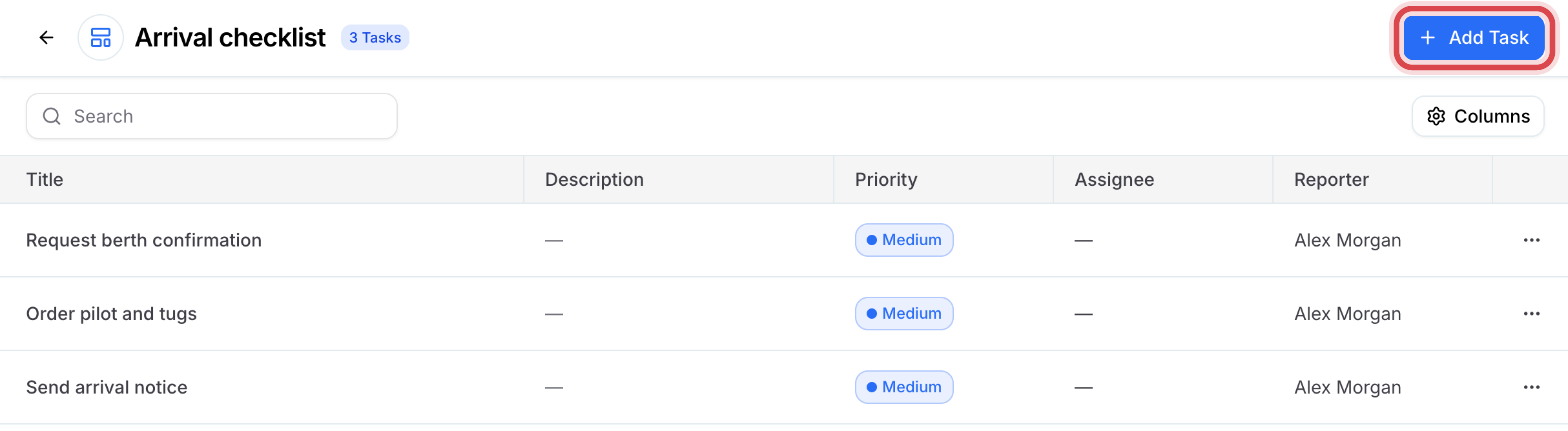
Open the template and click Add Task for each task. Only Title is required. You can also set Assignee, Reporter, Priority, Description and Attachments.
Apply the template to a record
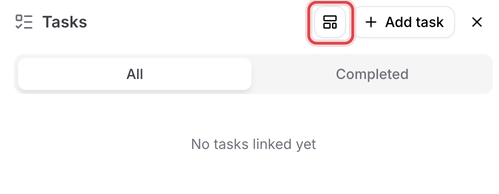
Open the record, for example a job, and open its Tasks panel. Click Apply template, the template icon next to Add task.
Choose the template
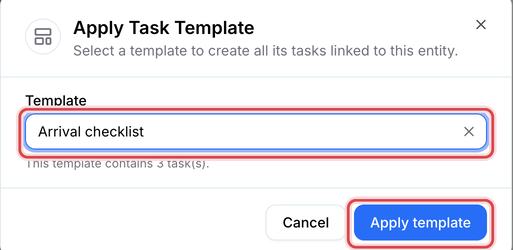
In Apply Task Template, choose the Template. PCM shows how many tasks it contains. Click Apply template.
PCM creates every task in the template and links them to the record.
Was this article helpful?
Thanks for your feedback.