

Record a credit card or petty cash payment
Record a card or cash purchase and add it to a job.
A credit card or petty cash payment is money already spent, such as a small purchase paid on the spot with a receipt. Record it, then add it to a job, so the cost shows on the job and can be billed to the customer.
Open Credit Card or Petty Cash
Go to Vendor Payments under Finance in the left menu and open Credit Card or Petty Cash. Both work the same way. Click Add Credit Card Payment or Add Petty Cash Payment.

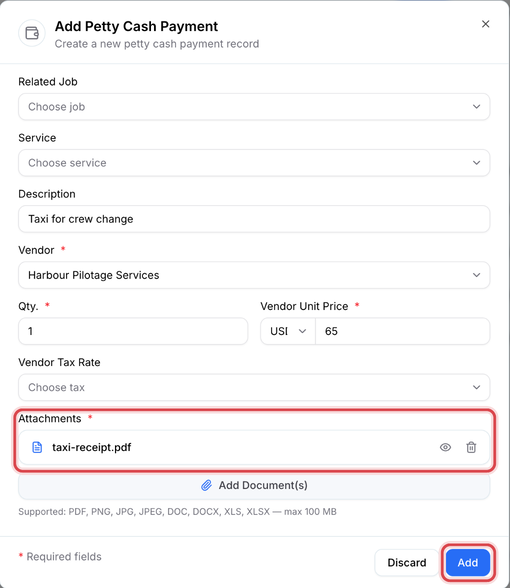
Record the payment
Fill in the Vendor, the Qty. and the Vendor Unit Price with its currency, and add at least one file under Attachments, such as a photo of the receipt. Click Add. The status is Not Added to Job.
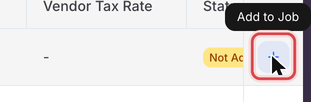
Click Add to Job
In the list, click + (Add to Job) at the end of the payment’s row.
Fill in the service
Add Service opens with the payment’s vendor, quantity and price. Fill in the Related Job, the Service and its Description, the Service Date, the Customer and the Customer Unit Price. Click Add Service.
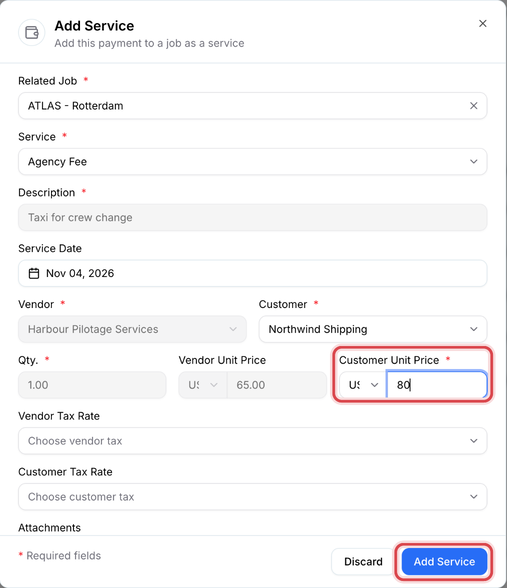
The job gets a Pending service with the payment’s cost and attachments, ready to bill. The payment becomes Added to Job and cannot be added again.
Note: Add to Job overwrites the payment’s job, service, quantity, vendor and price with what you entered in the dialog.
Was this article helpful?
Thanks for your feedback.