

Log cargo operations
Log each period of loading, discharging or waiting on a vessel's cargo.
Cargo operations are the time log of the work on a cargo: each loading or discharging shift, and the stoppages, waiting and shifting in between. They show the team how much work is left.
Add the cargo first. See Add cargo to a vessel.
Add a cargo operation
On the vessel’s Cargo Handling tab, click Add Cargo Operation. A new row opens in the Cargo Operations table.
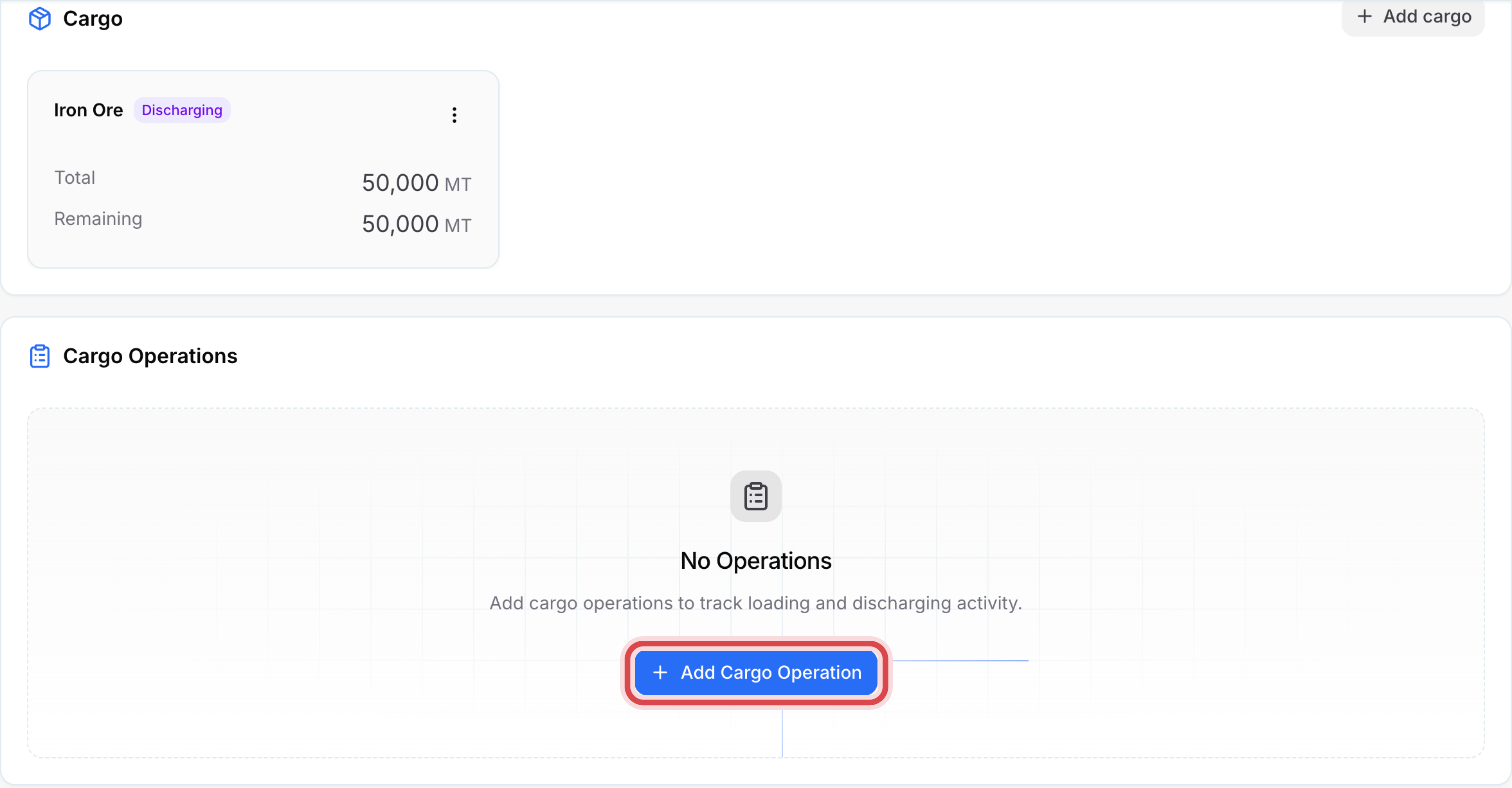
Fill in the row
- Operation: Loading or Discharging for cargo handled; Stoppage, Waiting, Shifting, Bunkering, Ship to Ship and the other choices for time without cargo handled.
- Cargo: which cargo it is for.
- Date, From and To: when it started and ended.
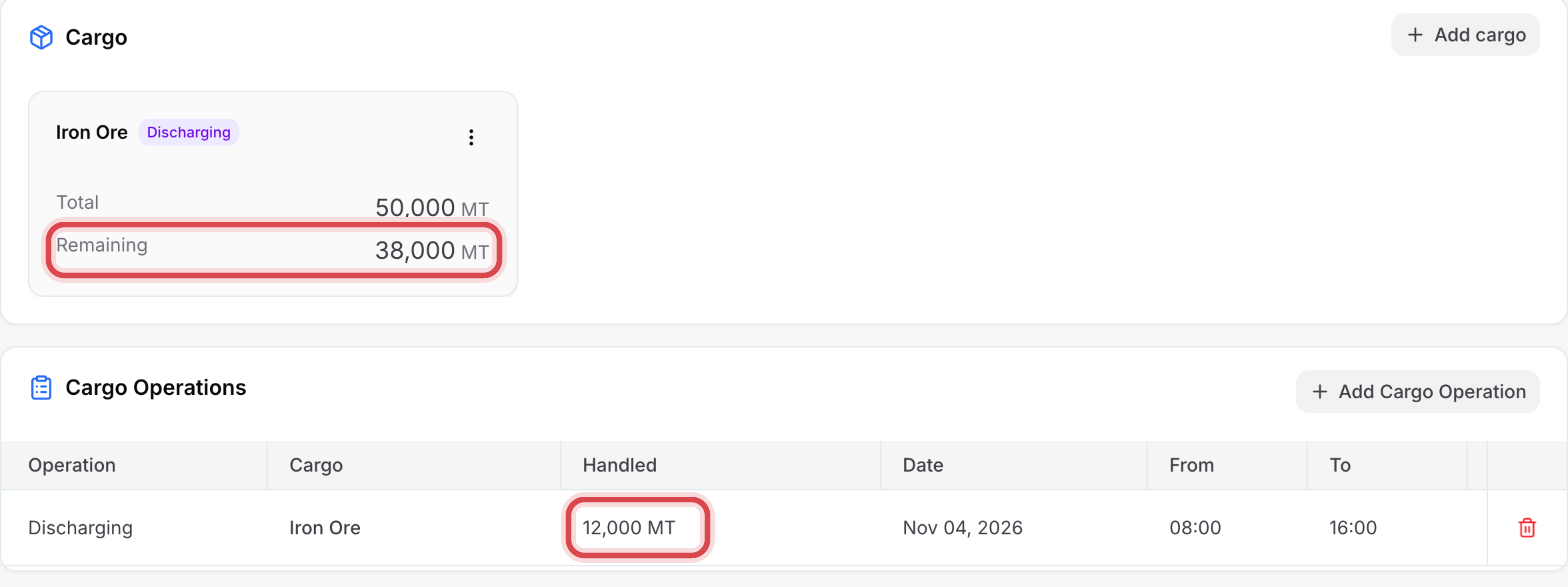
- Handled: for loading or discharging, how much was handled in this period.
Hold, Gang and Remark are optional.

Note: Handled cannot be more than the cargo’s remaining amount, and for loading or discharging you can only choose a cargo with the same operation.
Save the operations
Click Save in the bar at the bottom of the table. The cargo’s Remaining amount goes down as loading or discharging is logged. To change an operation later, edit its row and click Save again.
Note: Cargo and cargo operations can no longer be changed once the job is closed, or while they are shared with another branch through a request.
Generate documents from the cargo
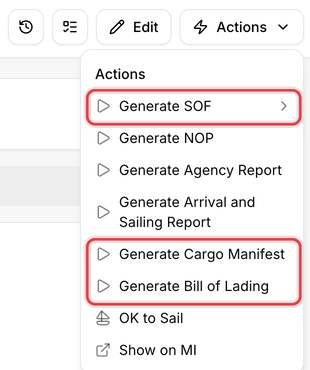
Open Actions on the vessel’s page and choose a document, such as Generate Cargo Manifest, Generate Bill of Lading or Generate SOF. See Generate a statement of facts.
Was this article helpful?
Thanks for your feedback.