

Add cargo to a vessel
Record the cargo a vessel loads or discharges on the call.
A cargo is one parcel a vessel loads or discharges on the call: what it is, how much, and where. It feeds the documents you generate for the call, such as the statement of facts and the cargo manifest.
Cargo always belongs to a vessel, so add the vessel first. See Add vessel details.
Open the vessel’s Cargo Handling tab
Open the job, click the Vessel & Cargo tab and click the vessel’s name. On the vessel’s page, click Cargo Handling.

Tip: You can also add cargo from the Cargo section of the job’s Job Details tab. There you choose which of the job’s vessels it is for.
Note: If you do not see Cargo Handling or the Cargo section, your branch may have hidden cargo, or you may not have permission to see it.
Fill in the cargo
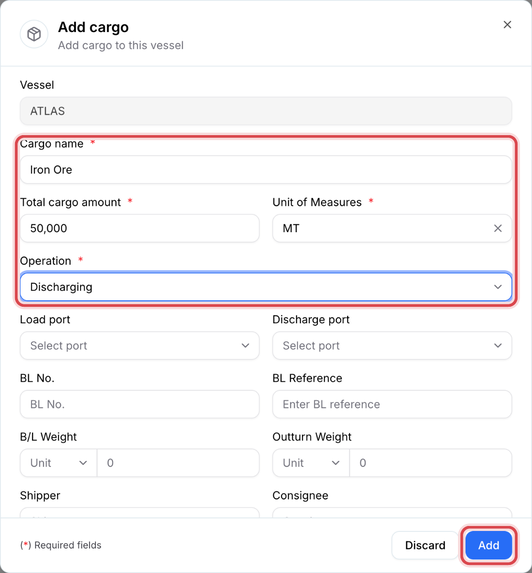
Click Add cargo and fill in:
- Cargo name: what the cargo is.
- Total cargo amount and Unit of Measures.
- Operation: Loading or Discharging.
Load port, Discharge port and the bill of lading details, such as BL No., Shipper and Consignee, are optional.
Save it
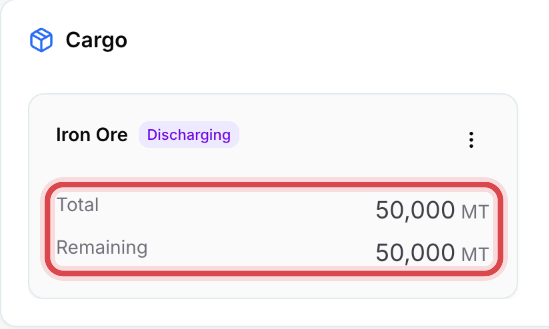
Click Add. The cargo shows as a card with its Total and the amount still Remaining to load or discharge.
To log the work on it, see Log cargo operations.
Change or delete the cargo
Open the actions on the cargo’s card and choose Edit, or Delete and confirm.
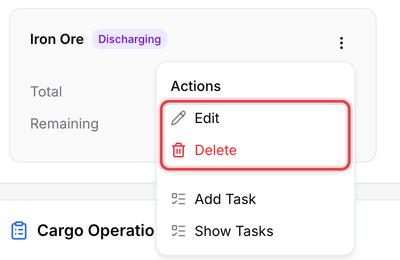
Note: PCM will not delete a cargo that still has operations; delete its operations first. A vessel with cargo cannot be deleted either.
Was this article helpful?
Thanks for your feedback.