

Add email templates to a job
Attach email templates to a job and set who each one goes to.
An email template is a ready-made message, such as an arrival notice, filled in from the job’s details when you send it. Attach the templates the job needs once, set their recipients, and every send is then a few clicks.
Add the templates
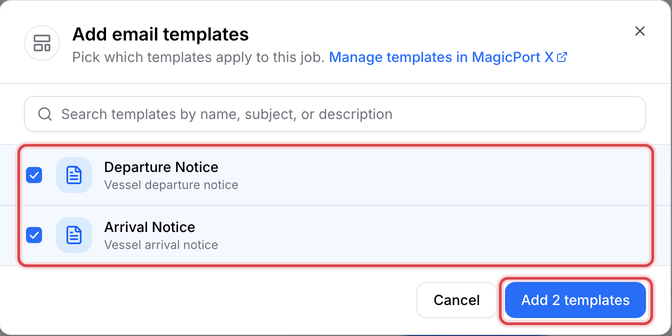
On the job’s Communications tab, in Email Routing, click Add Template. Tick the templates you want and click the add button, such as Add 2 templates.
To create or change templates, click Manage templates in MagicPort X.
Open a template’s recipients
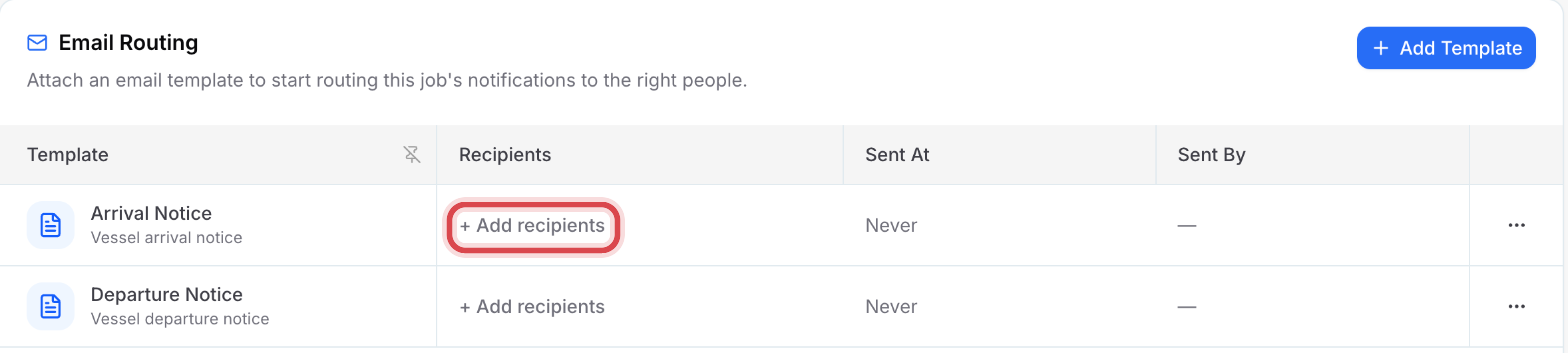
Click + Add recipients in the template’s row, or Edit recipients in its row actions. If you added only one template, PCM opens its recipients straight away.
Choose the recipients
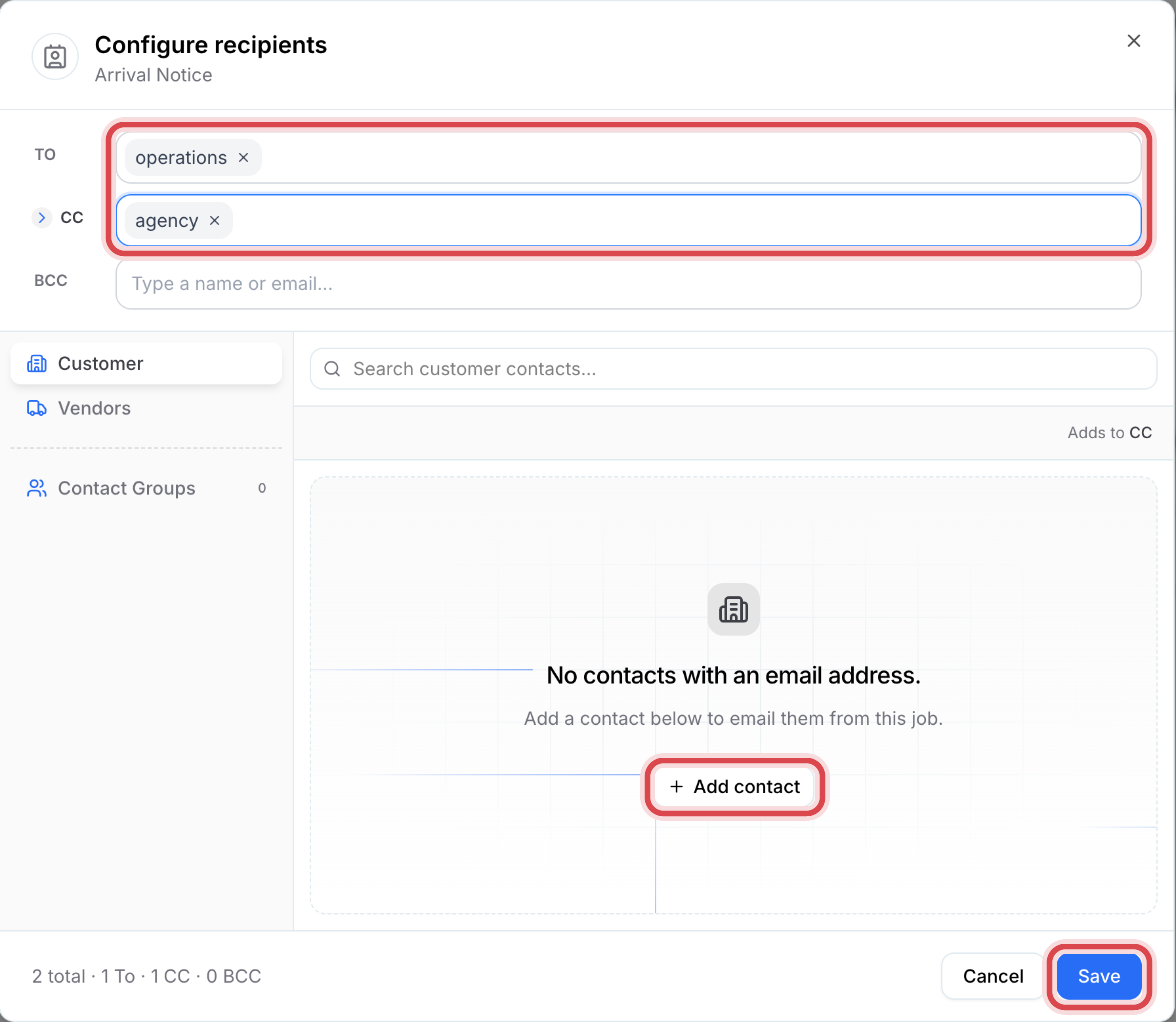
In Configure recipients, fill To, CC and BCC from Customer contacts, Vendors contacts or Contact Groups, or type a name or an email address. Click Save.
If a contact is missing, click Add contact to add it to that customer or vendor. Name and Email are required.
Copy recipients to other templates
When templates go to the same people, set up one and click Copy Recipients To on its row.
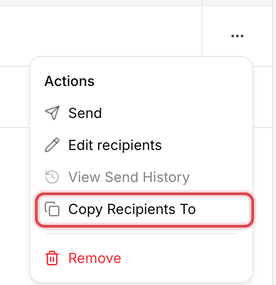
Note: Copying replaces the other templates’ recipients; it does not add to them.
To take a template off the job, open its row actions and click Remove.
Was this article helpful?
Thanks for your feedback.