

Search the audit logs
Search every change made in the branch.
Use the Audit Logs page when you do not know which record changed, or want to see everything one colleague did.
Note: You need permission to view audit logs. If you do not see the Audit Logs menu, ask your administrator.
Open Audit Logs
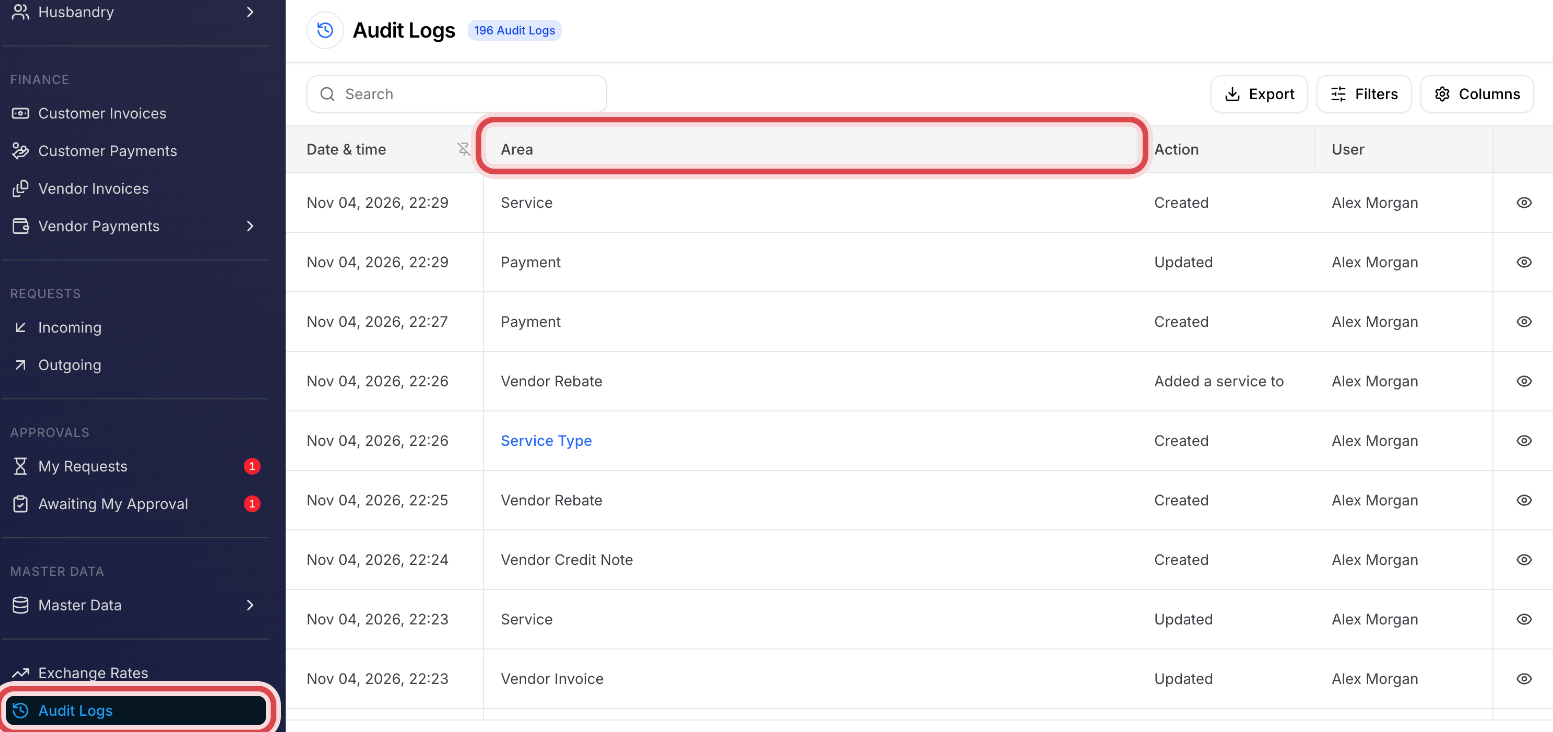
Click Audit Logs at the bottom of the left menu. The list shows every recorded change in the selected branch, with Date & time, Area (the record), Action and User. Click an Area to open that record.
Filter the list
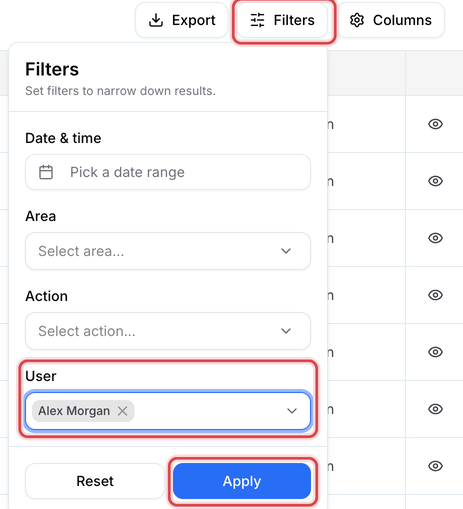
Click Filters and narrow by Date & time, Area, Action or User.
Open one entry
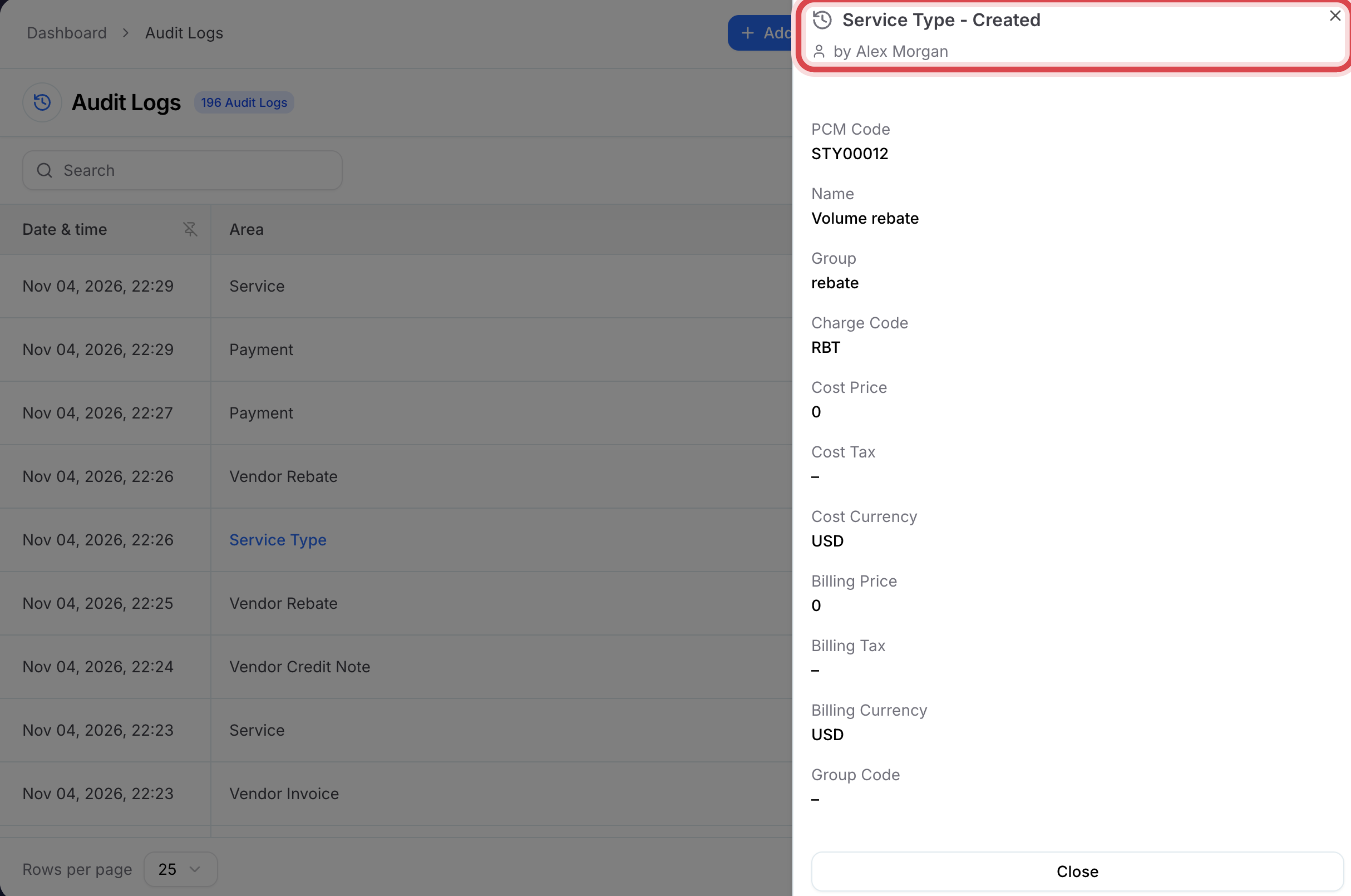
Click View (the eye icon) at the end of a row. The panel shows the old and new value of each changed field.
Note: The page shows the branch selected at the top of the screen. Customers and vendors are shared by all branches; their history is listed in the branch that last edited them. See Branches and what you can see.
Was this article helpful?
Thanks for your feedback.