

Create a company account
A company account is your organisation's home on MagicPort. It holds your public company profile, your subscriptions and the colleagues who work under your company.
 2 min walkthrough of creating a company account
Setting up a company account lets you do three things from one place:
- Get found by partners. Once reviewed and approved, your company profile is public to principals, ship agents and other partners on the MagicPort Trusted Maritime Network.
- Manage your subscriptions. See your plan and billing under your company rather than one person’s login.
- Manage your team. Invite colleagues and decide what each of them can see and do.
Any signed-in MagicPort user can create a company account, and you only need one per organisation. Have these ready: your registered company name, company type, business address, a main telephone number, a contact email address and the currency you normally bill in.
Open your dashboard
From any MagicPort product, click your profile picture in the top right corner, then Dashboard. You can also go straight to app.magicport.ai.
If your company is not set up yet, a yellow banner at the top of the page says You haven’t set up your company yet, and User Management is greyed out until you create one.
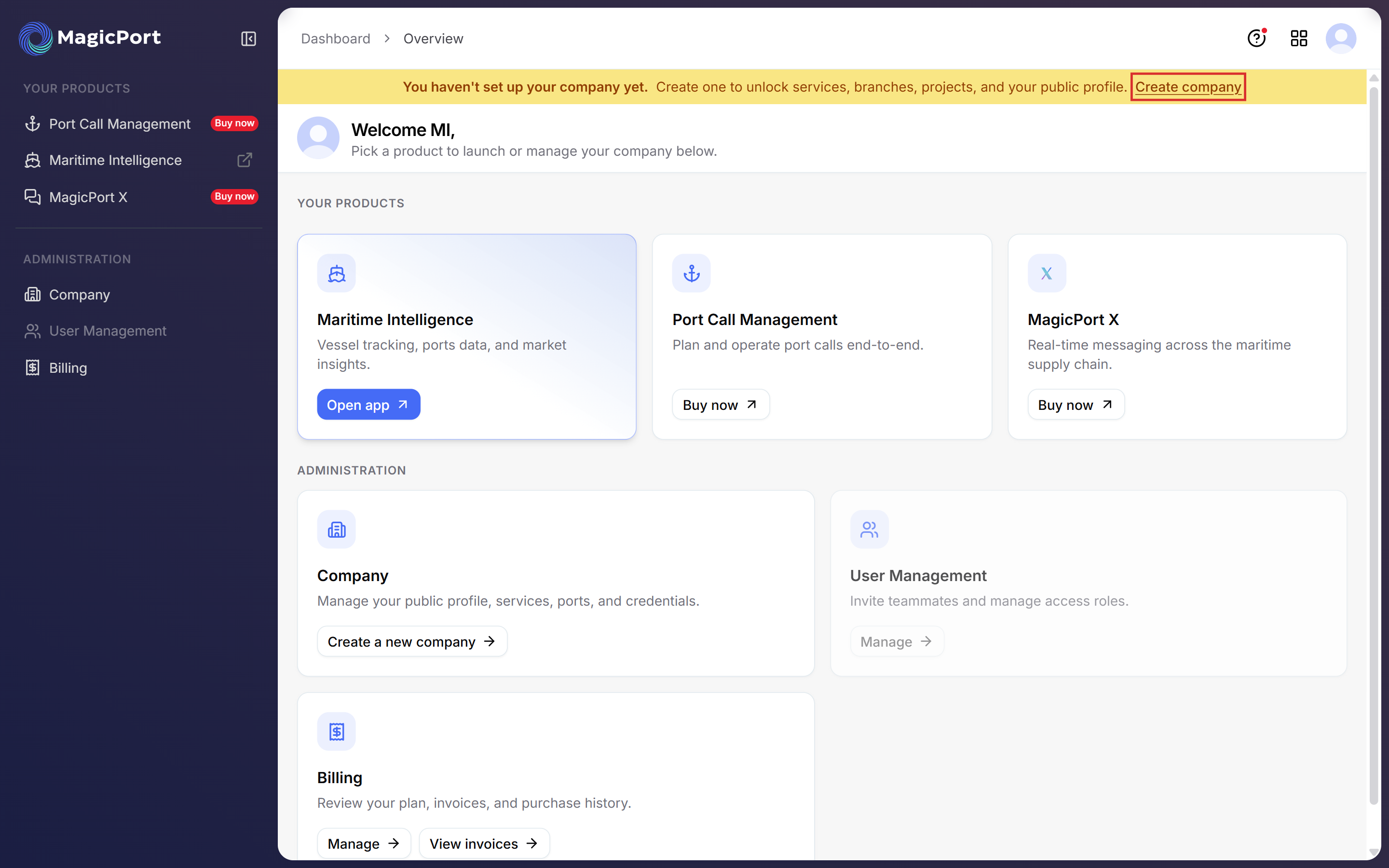
Click Create company
Click Create company in the yellow banner. You can also click Create a new company on the Company card, or Company under Administration in the left sidebar. All of them open the same form.
Fill in your company details
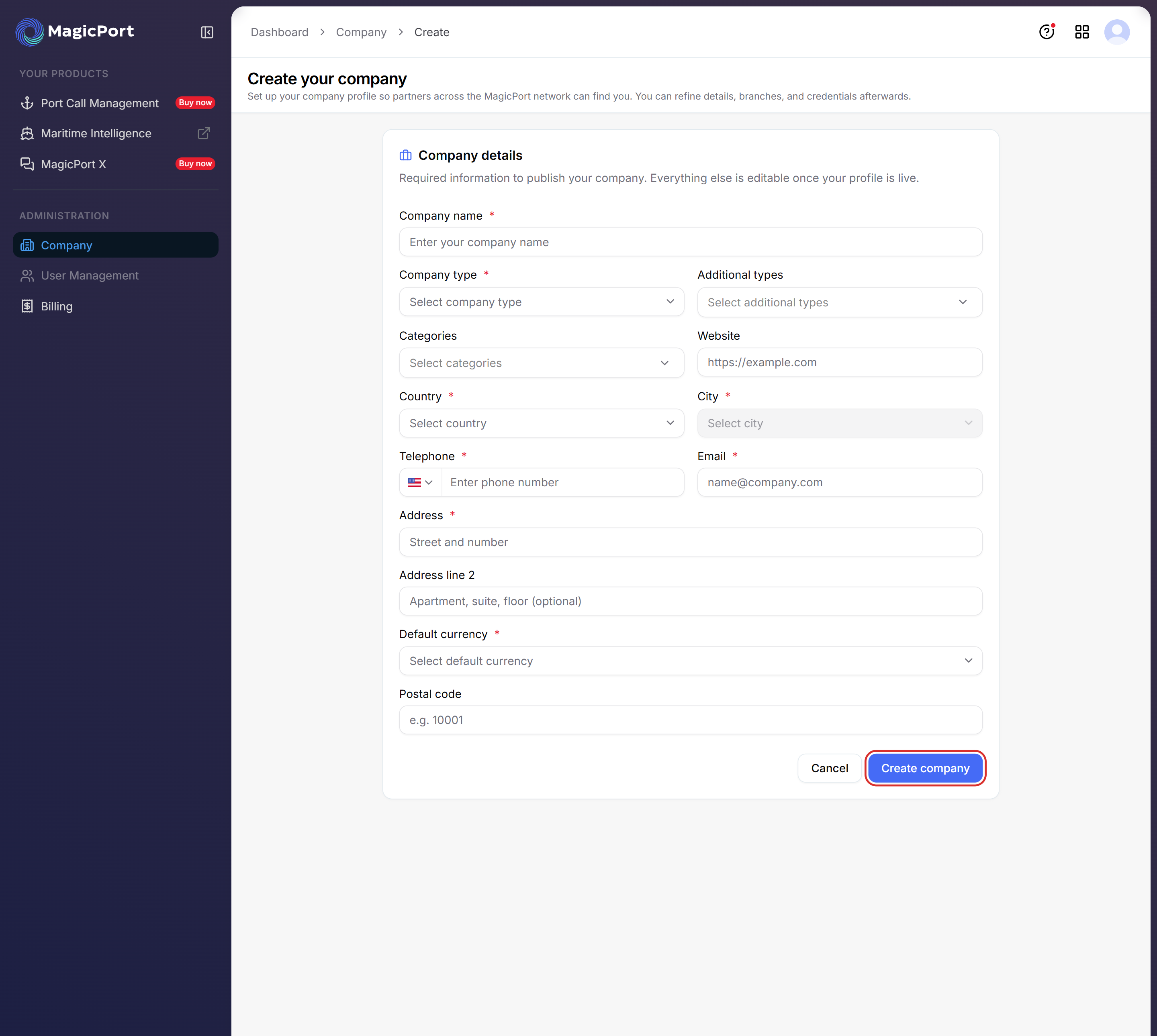
The Create your company form opens. These fields are required, marked with an asterisk (*):
- Company name and Company type
- Country and City (choose the country first)
- Telephone and Email
- Address
- Default currency, the currency you normally bill in
Additional types, Categories, Website, Address line 2 and Postal code are optional.
Click Create company at the bottom of the form.
Tip: Use the email address you want partners to contact, not necessarily your own login. A shared inbox such as ops@ or agency@ keeps enquiries reachable when people change roles.
Wait for the review
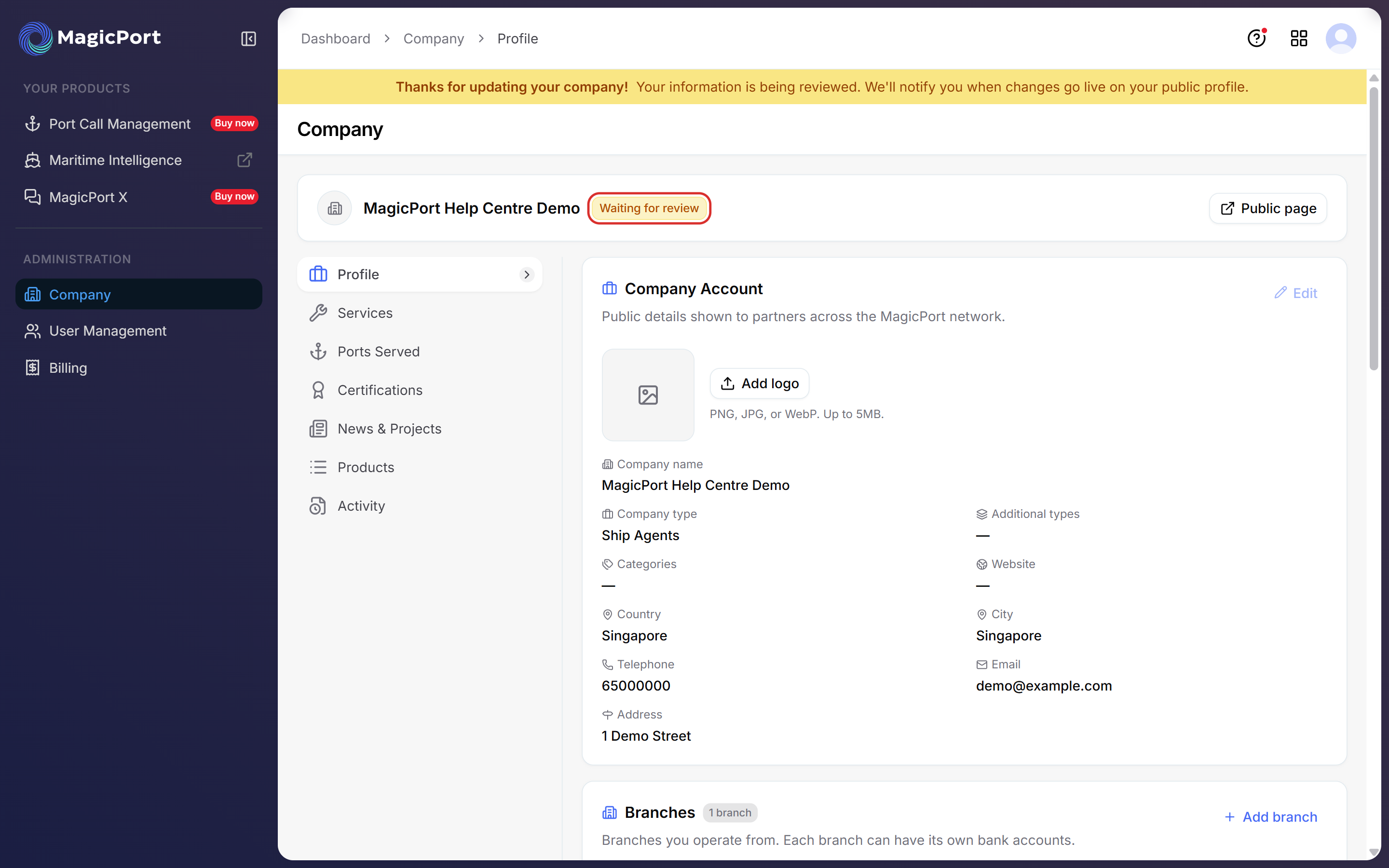
You land on your company’s Profile page. Your company name shows Waiting for review, and a yellow banner says Thanks for updating your company! MagicPort lets you know when your changes go live on your public profile.
Your public profile is not visible to partners until the review is complete. You can keep adding details while you wait.
Complete your profile
The menu on the left of your Company page opens each part of your profile. The more you fill in, the easier it is for partners to decide to work with you.
Section What it holds Profile Your core company details and logo Services The services your company offers Ports Served The ports where you operate Certifications Certifications and accreditations you hold News & Projects Company updates and project highlights Products Products your company offers Activity A record of changes made to your company account The Profile page itself has more to fill in, below your company details:
Panel What to add Company Account Your logo: click Add logo (PNG, JPG or WebP, up to 5 MB). Click Edit to change the details you entered Branches The offices you operate from. Your first branch, Head Office, is created for you. Click Add branch for more About Company A short description of what you do and what sets you apart Statistics Years of experience, vessels handled and cargo volume Social Media Links such as WhatsApp or LinkedIn, so partners can reach you Check your public page
Click Public page at the top of your Company page to see your profile the way partners will.
When you are done, invite your colleagues. See Add team members.
Was this article helpful?
Thanks for your feedback.