

Add team members
Invite colleagues to your company account by email from User Management, so each person has their own login and you control what they can access.
 1 min walkthrough of adding team members
Giving each colleague their own login, rather than sharing one, means everyone gets the products and permissions their job needs, and you can change or remove one person’s access without affecting anyone else.
Before you start, you need:
- A company account. User Management stays greyed out until your company exists. See Create a company account.
- A free seat on the product your colleague will use.
- Your colleague’s work email, the address they will sign in with.
Open User Management
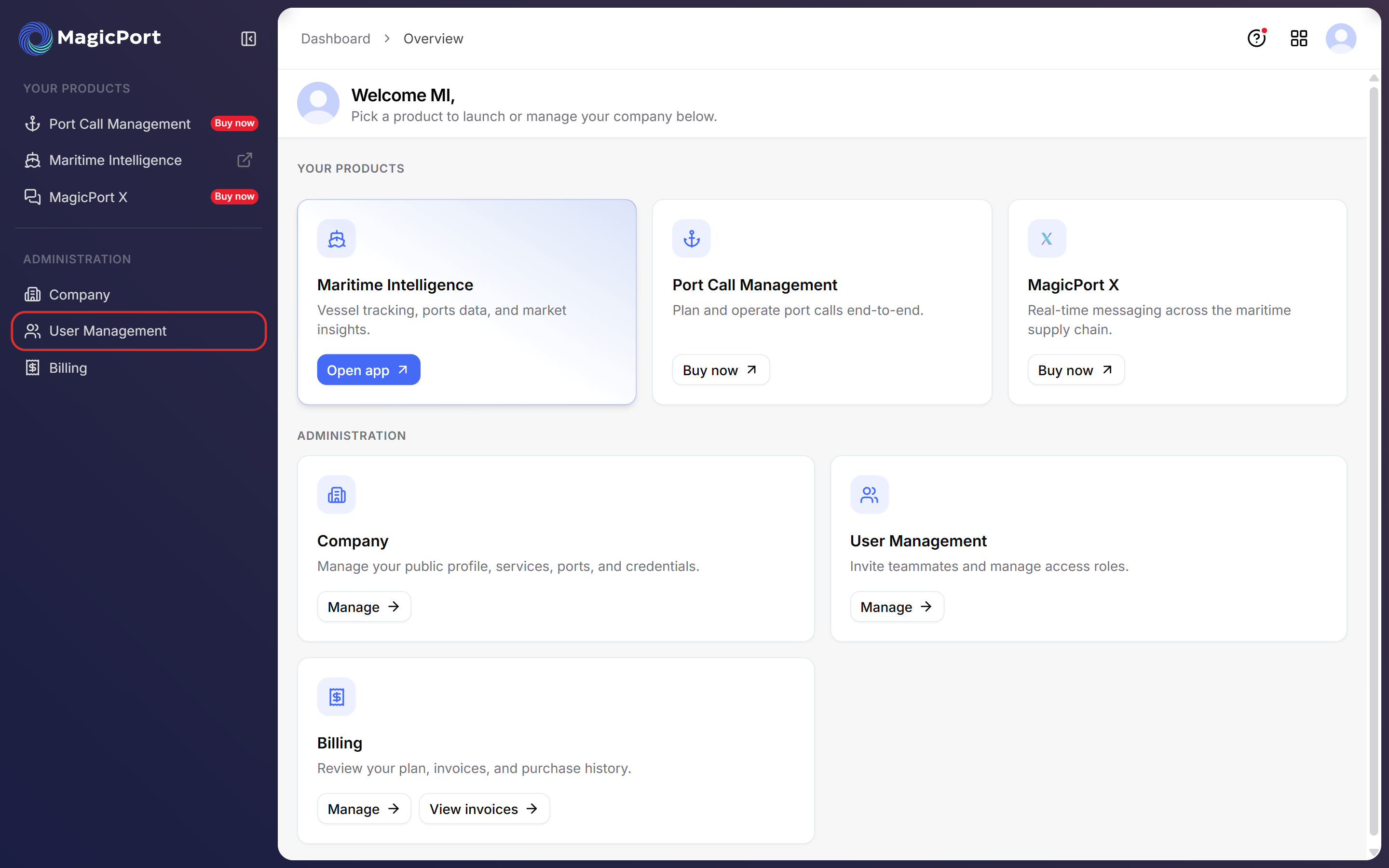
From any MagicPort product, click your profile picture in the top right corner, then Dashboard, or go to app.magicport.ai. Click User Management under Administration in the left sidebar, or Manage on the User Management card.
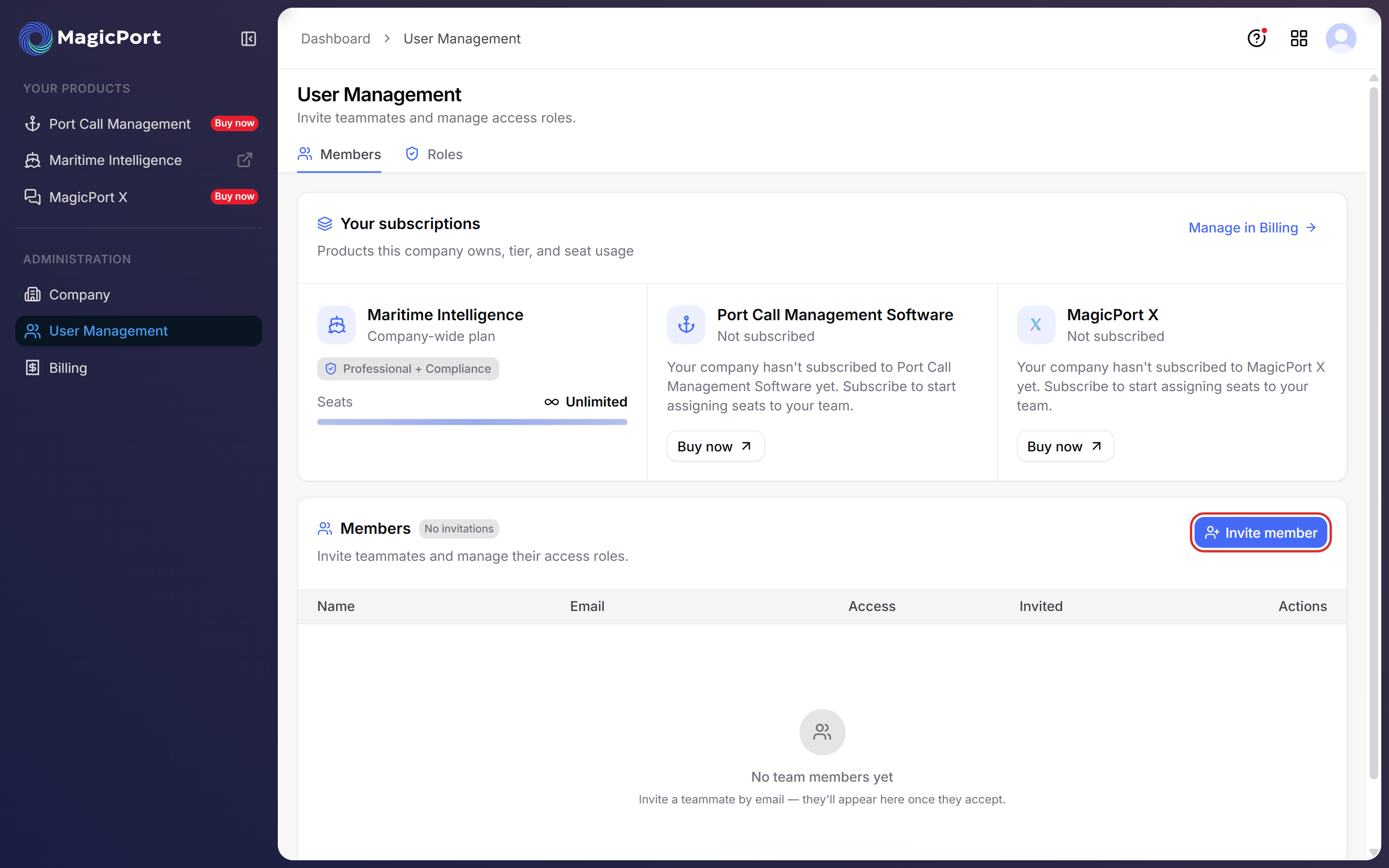
The page has two tabs: Members, where you invite and manage colleagues, and Roles, where you set what each role can do. Members opens first.
Check your seats
Your subscriptions shows each product your company has, its plan and its seats. What you see depends on the plan:
Plan shows What it means Company-wide plan, Seats Unlimited Everyone in your company can use the product. Invite as many colleagues as you need Assignable per user, for example Seats used 1 of 1 Each colleague takes one seat. If they are all used, click Add seats or Manage in Billing Products your company has not bought show Not subscribed and a Buy now button.
Click Invite member
In the Members panel, click Invite member on the right.
Enter the email address and click Send invitation
The Invite a teammate window opens. Enter your colleague’s work email in Email address and click Send invitation. To close the window without sending, click Discard.
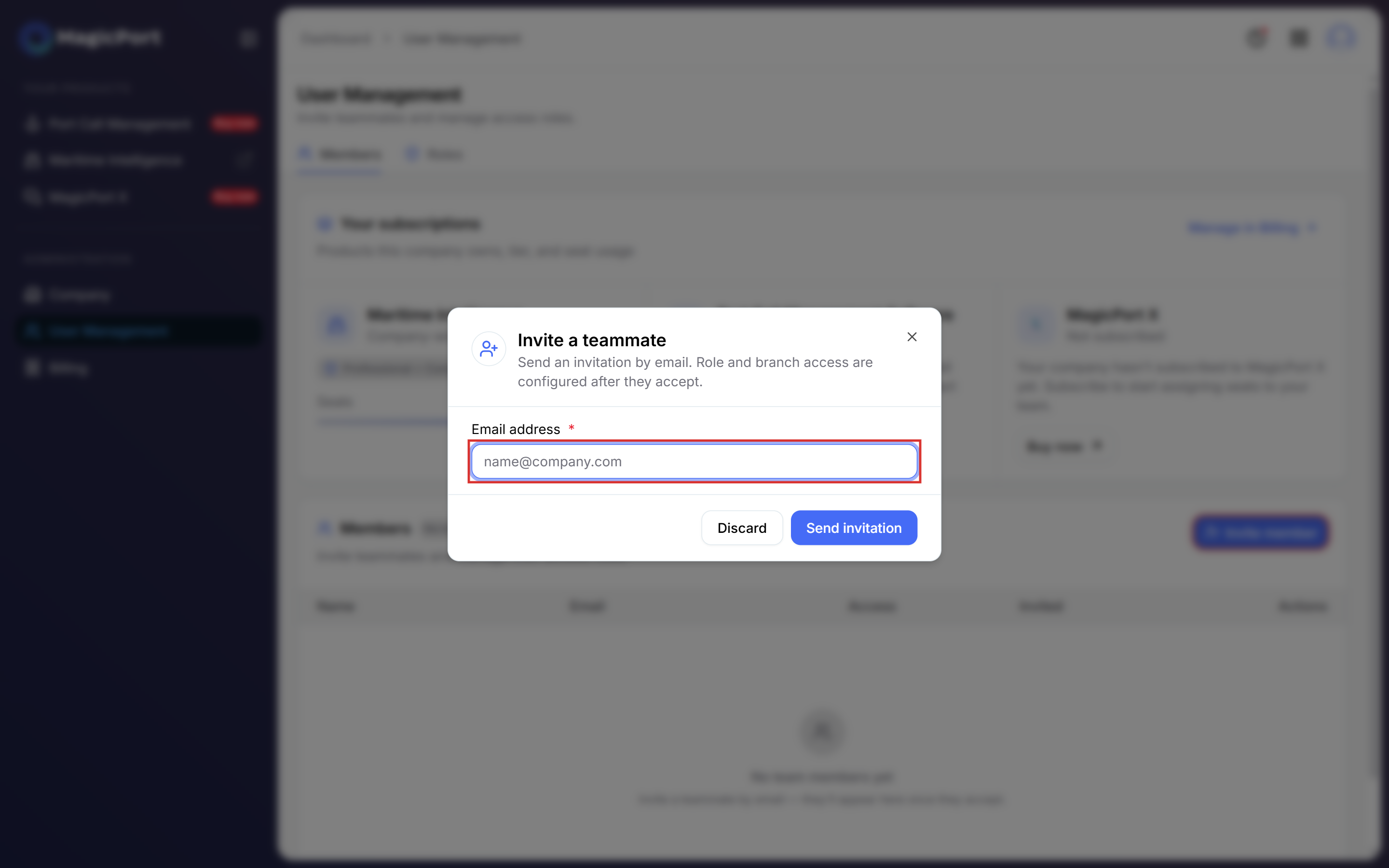
Note: The invitation only needs an email address. You choose your colleague’s role and the branches they can access after they accept.
Track the invitation
Your colleague receives an email inviting them to join your company on MagicPort. Until they accept, the invitation is listed under Members with the date it was sent and an Access status of Pending. The label next to Members shows how many invitations are open.
Set up roles
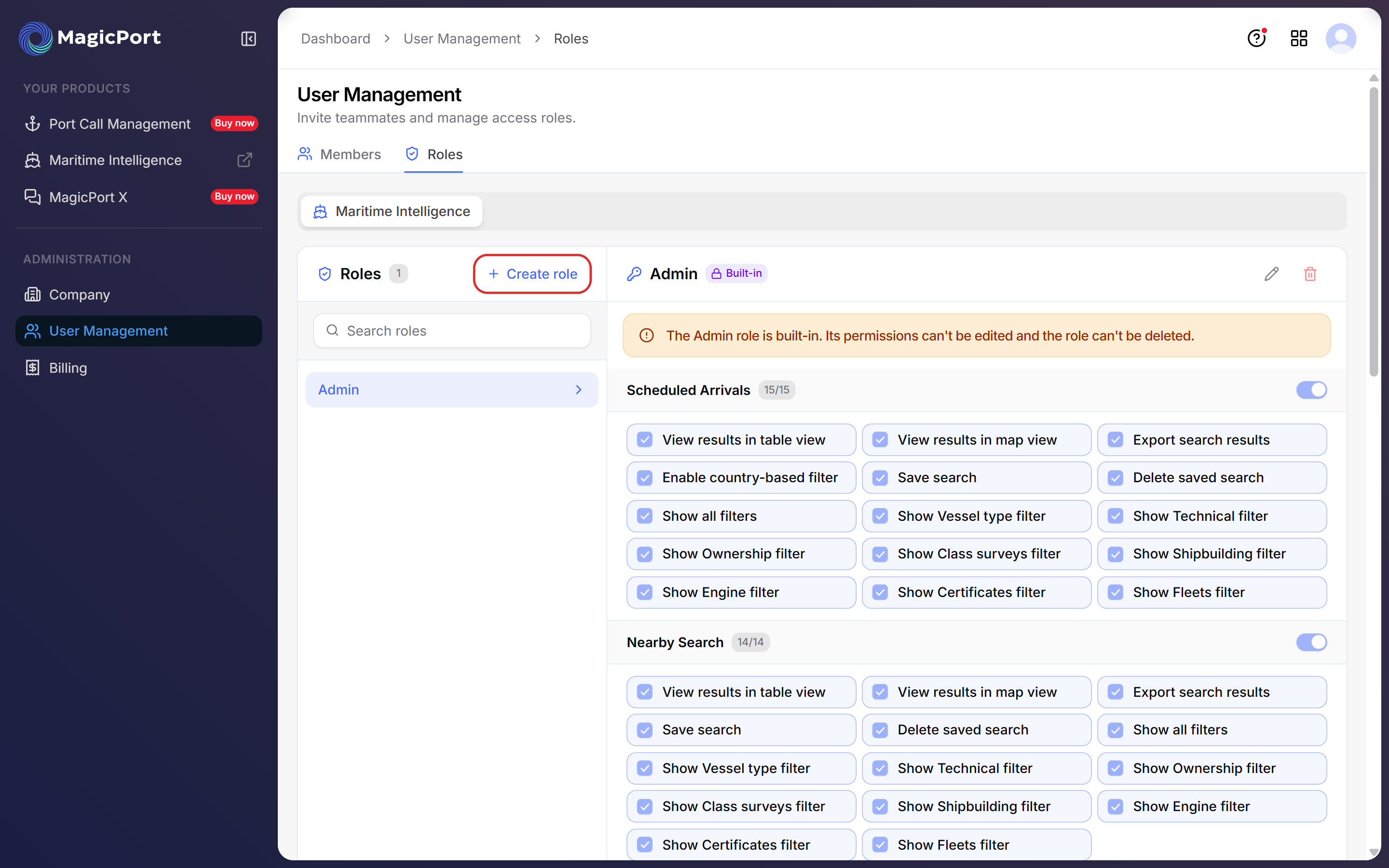
Open the Roles tab to decide what each role can do. Roles are set per product, for example Maritime Intelligence.
- Every company starts with a built-in Admin role that has every permission. Its permissions can’t be edited and it can’t be deleted.
- Click Create role to add your own, for example a role that can search but not export.
- Click a role to see its permissions, grouped by feature such as Scheduled Arrivals or Nearby Search. Each group has a switch to turn the whole group on or off, and a checkbox for each permission, such as Export search results or Save search.
Once your colleague has accepted, give them the role that fits their job.
Was this article helpful?
Thanks for your feedback.